Welcome to your HiChord
Seven buttons, a joystick, and no wrong notes. You'll be playing music in the next minute — this manual is here for when you get curious.
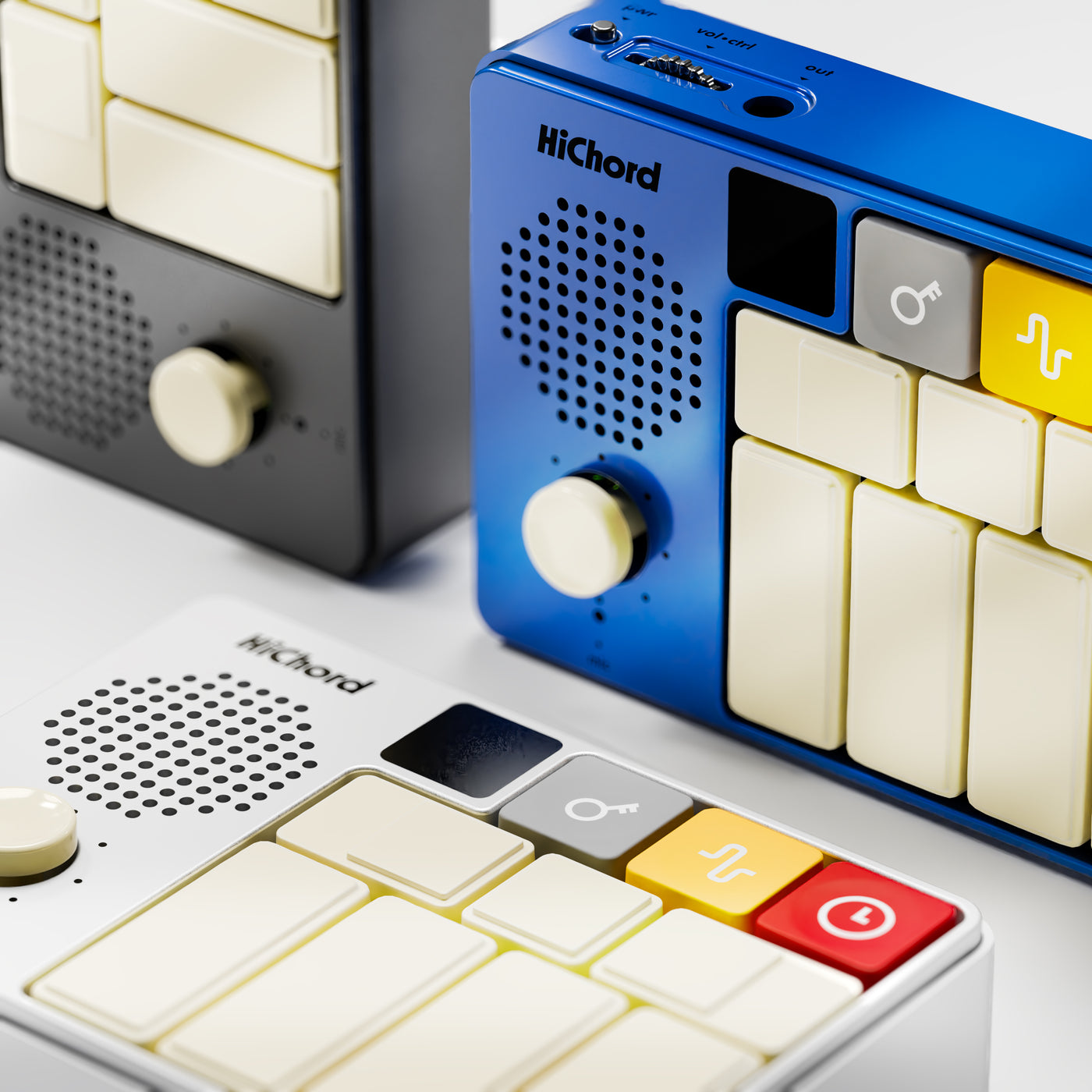
Just unboxed? If your HiChord doesn’t show 3.0 under the logo when it starts, update it first: about five minutes on a computer with Chrome or Edge, and a new unit has nothing to lose. Showing 3.0 BETA? Update too: it keeps everything. Staying on Rev 2.8? Here’s the Rev 2.8 manual.
- Press a button. Every button is a chord that fits with the others.
- Nudge the joystick. Same chord, new color — jazzy, dreamy, bluesy.
- Pick a sound. Piano, organ, synths, and your own recordings.
- Change how it plays. Strum it, arpeggiate it, hold a drone.
- Loop it. Layer parts and add a beat.
- Connect the app. Design, save and share sounds from your browser.
Each chapter below opens when you want it. Prefer one long page?
You never need to read this front to back. Use the search on the left, or jump to the Quick Reference for every button combination on one page.
This manual matches firmware Rev 3.0 — the version shown under the logo when your HiChord starts. On an older version? Update in about five minutes.
Quick Start
Seven chord buttons. Zero wrong notes. Slide the power switch on the top edge to turn it on, plug in headphones (or use the built-in speaker), and press any button. The screen shows the chord you're playing; the wheel is your volume.
Step 1 — Press any button. It plays a chord.
All 7 buttons work together — press them in any order and they always sound good together.
Press and hold a button — turn your sound on. Try 1, then 5, then 6, then 4: that's half the songs you know.
What's a chord?
Three or more notes played together. Each button plays a different chord. The name appears on the screen (like "Cmaj", "Dmin", "Gmaj").
How do the 7 buttons work together?
The 7 buttons follow a pattern used in almost all music. Each button has a role:
This pattern is called the diatonic system — 7 chords built from one scale, so they naturally fit together. It's the foundation of nearly all Western music. HiChord maps it to the buttons so you can play it without thinking about it.
See the notes
Tap a chord button, then try a joystick direction to see which piano keys light up.
Key of C — 2 octaves
Step 2 — Hold a button. Push the stick.
While holding a chord button, push the joystick in any direction. Each direction changes the chord's character — try it in the explorer above. Let go and it returns to normal.
Step 3 — The menu buttons.
The three colored buttons at the top control your key, your sound, and your play mode.
Step 4 — Record. Layer. Make a song.
Record yourself playing, then switch to a different sound and record another part on top. Build up a full song with up to 6 layers.
Record your first loop
Press the joystick in (push it straight down like a button) to open the looper.
Press again to start recording. In bar mode, a 4-beat metronome count-in plays first — just start playing along with it. (In FREE mode there’s no count-in: the screen says ARMED and recording starts with the first chord you play.)
Play chords while it records.
Press to stop — or, with a bar count set (4 bars to start with), let it stop by itself at the end of the last bar for a perfectly timed loop. Your recording loops forever and keeps playing back.
Add another layer
While your first loop plays, switch to a different instrument (press yellow) and press the joystick to record again. The new layer automatically syncs to your first loop. You can keep layering — up to 6 tracks total.
What the screen shows
The screen shows 2 tracks at a time. Push joystick left/right to move from track to track; the page turns as you go. The shape (circle, square, triangle) tells you which page you're on — all tracks work the same.
Your HiChord
You've played your first chords. Here is what each part of your HiChord does.
The joystick (lower-left, ringed by 8 dots) pushes 8 ways and clicks in like a button. The power slider, volume wheel and 3.5 mm jack sit on the top edge above the speaker; USB-C is on the right side.
The 3 menu buttons
Each colored button opens its own menu. Press it and move the joystick to navigate. Play a chord or click the joystick to close it; the gray menu also closes by itself after 5 seconds without input. (Pressing red three times quickly taps in a new tempo.)
Gray — Key & Settings
- Left/Right: change key
- Up/Down: shift octave
- + Wheel: attack time
Yellow — Sounds & Effects
- Left/Right: change sound
- Up: enter effects list
- + Wheel: release time
Red — Modes & Tempo
- Left/Right: change mode
- Up: BPM menu
- + Wheel: filter cutoff
More detail: connections & ports
| Part | Details |
|---|---|
| Power switch | Red slider on the top edge. Slide to turn on or off. |
| 3.5mm jack | Headphones or line out; any standard headphones or aux cable. Plugging in mutes the speaker. On Batch 4+, TRS OUT = ON makes it a MIDI output instead (see section 10). |
| USB-C | Charges the battery and carries MIDI and USB audio at the same time (see section 10). |
| Speaker | Mono, on the left panel. Fine for practice; headphones give full stereo. |
| Mic | Below the volume wheel. For vocoder, tuner and sampling (Batch 4+). |
| OLED Screen | Chord names, menus, looper state, battery level and current settings. |
More detail: hardware batches
Playing Chords
Press a button, hear a chordChordThree or more notes played together. Think of it as a "team" of notes that create a mood.. All 7 buttons always sound good together, so you can't make a mistake.
The 7 buttons
Each button plays a chord in the current key. In the default key of C:
| Button | Degree | Type | In C | Feeling |
|---|---|---|---|---|
| 1 | IScale DegreeRoman numerals show a chord's position in the key. Uppercase = major, lowercase = minor. | MajorMajor ChordBright, happy-sounding. Built from the 1st, 3rd, and 5th notes of the scale. | C Major | Home base |
| 2 | ii | MinorMinor ChordDarker, more emotional. The 3rd note is lowered by one half step compared to major. | D minor | Gentle, soft |
| 3 | iii | Minor | E minor | Darker mood |
| 4 | IV | Major | F Major | Lift, openness |
| 5 | V | Major | G Major | Tension, energy |
| 6 | vi | Minor | A minor | Emotional |
| 7 | vii° | DimDiminished ChordTense and unstable — both the 3rd and 5th notes are lowered. Creates suspense. | B dim | Suspense |
1 → 5 → 6 → 4. It's the most popular chord progressionChord ProgressionA sequence of chords played in order — the backbone of every song. in pop music, heard in hundreds of songs.Changing key
The key sets which notes the 7 buttons play. The buttons keep their relationships; only the pitch changes.
Press to open the key menu.
Joystick Left/Right to pick any of the 12 keys: C, C#, D, D#, E, F, F#, G, G#, A, A#, B.
OctaveOctaveThe same note played higher or lower. Moving up one octave makes the sound brighter; down makes it deeper. shifting
Go lower for bass lines or higher for bright melodies.
Shift one Chord Button
Hold the Chord Button you want to shift. The others stay put.
While holding it, press to shift down one octave. Press again to go lower, down to 2 octaves below.
Or press to shift up, up to 2 octaves above.
Shift all Chord Buttons at once
Press to open the key menu.
Joystick Up/Down to shift everything, from 2 octaves below to 2 above.
BPM (tempo)
BPM sets the speed of delay, arpeggios, drum loops, sequencer and metronome.
Press , then Joystick Up to enter the BPM menu.
Left/right to adjust. Range: 40–300 BPM.
Tap Tempo: Tap three or more times in rhythm to set BPM by feel.
InversionsInversionSame chord, different arrangement. The lowest note changes — like reshuffling a hand of cards.
An inversion puts a different note of the chord on the bottom. Same notes, different color.
How to invert
Hold a Chord Button (e.g. button 1 for C Major).
While holding it, press . Each press cycles: Root → 1st Inversion → 2nd Inversion → Root.
More detail: inversions and voice leading
Inversions keep the notes close together, so chord changes sound smoother instead of jumping around.
Chord Lock
A joystick push changes a chord only until you let go. Chord Lock makes the change stick to that button.
Hold a Chord Button + push joystick to the modification you want (e.g. right for Maj7).
While holding both, press to lock it in.
To unlock, repeat the same steps.
More detail: chord lock
Example: lock button 5 to Dom7 for a bluesy feel in your progressions, without holding the joystick every time.
A locked chord stays pinned to the key it was locked in. It won't follow later key changes. Changing the SCALE clears every lock.
Saving a preset (P1–P4) saves your chord locks too. Loading it brings them back, along with the scale they were made in.
Slash chordsSlash ChordWritten "Em/C" — a chord with a different bass note. Like playing a chord with your right hand and a bass note with your left. (Batch 4+)
A slash chord puts a different bass note under a chord, like "C/E": C major with E lowest. It smooths the bass line between chords. Hold the Chord Button for the bass note, then press the one for the chord. The screen shows the name, like "Emin/C". It works in Play, Strum, Drone, Arp and Repeat, with nothing to switch on.
More detail: setting up and playing slash chords
The BASS setting
On every batch, the BASS setting in effects puts a bass note under every chord you play:
Press → Joystick Up to enter effects.
Left/right until you see BASS.
Press up to cycle: OFF → ROOT → SLASH.
| Mode | What happens |
|---|---|
| OFF | No bass note (default). Just the chord. |
| ROOT | Adds a bass note 2 octaves below the chord root, for fullness. |
| SLASH | An automatic slash chord: the bass plays the chord's 5th (the 3rd on minor chords, the 4th or 2nd on sus chords), 2 octaves down. Screen shows "Cmaj/G" or "Amin/C". |
How a slash chord stacks up
Here's the classic Am/C:
The Joystick
Hold a Chord Button and push the joystick to change the chord's character. Release to snap back.
Each direction adds, removes or alters notes in the chord. Five joystick modes — Default, Extended, Chromatic, Borrow, and OG — put dozens of chord voicingsVoicingA variation of a chord — same root, different color. Adding a 7th, removing the 3rd, or raising the 5th are all different voicings. under your thumb.
Default Mode
Start here. It covers pop, rock, soul and everything in between.
More detail: what each direction does to the chord
What each direction does to the chord
Each direction changes specific notes. Examples use the key of C (button 1 = C Major: C-E-G):
| Direction | Chord Change | What it does (theory) | Example in C |
|---|---|---|---|
| ↑ Up | Maj ↔ Min | Flips the 3rd: raises it a half step (minor→major) or lowers it (major→minor). Switches the mood between bright and dark. | C (C-E-G) → Cm (C-E♭-G) |
| ↗ Up-Right | Dom7 | Adds a flatted 7th on top of a major chord. Bluesy tension that wants to resolve. | C (C-E-G) → C7 (C-E-G-B♭) |
| → Right | Maj7 / min7 | Adds the 7th: a major 7th on major chords for a smooth jazz feel, a minor 7th on minor chords for mellow warmth. On the diminished chord it plays m7♭5. | C → CMaj7 (C-E-G-B) Am → Am7 (A-C-E-G) |
| ↘ Down-Right | 9th | A full 9th chord: the 7th plus the 9th (the scale's 2nd note, an octave higher). Lush and modern. On the diminished chord it plays m7♭5. | C → Cmaj9 (C-E-G-B-D) Dm → Dm9 (D-F-A-C-E) |
| ↓ Down | Sus4 | Replaces the 3rd with the 4th. The chord is no longer major or minor: open and unresolved. | C (C-E-G) → Csus4 (C-F-G) |
| ↙ Down-Left | 6th / Sus2 | Major chords: adds the 6th for a sweet, nostalgic sound. Minor chords: replaces the 3rd with the 2nd (sus2). | C → C6 (C-E-G-A) Dm → Dsus2 (D-E-A) |
| ← Left | Dim / Min | Darkest. Major and minor chords become diminished (minor 3rd and flat 5th). The diminished chord (button 7) becomes minor. | C (C-E-G) → Cdim (C-E♭-G♭) Bdim → Bm (B-D-F♯) |
| ↖ Up-Left | Aug | Raises the 5th a half step (minor chords also get a major 3rd; the diminished chord becomes augmented too). Floating, unresolved, dreamy. | C (C-E-G) → Caug (C-E-G♯) |
Major and minor chords react differently to the same direction. Right, for example, adds a Maj7 on major chords but a min7 on minor chords.
See it on the keys
Three useful moves on button 1 (C major = C–E–G). Base notes are green; the note that moves or gets added is red.
Switching joystick modes
Press , then Joystick Up to enter effects.
Left/right until you see JOYSTICK, then up to cycle: DEFAULT → EXTEND → CHROM → BORROW → OG. The JOYSTICK row itself shows the current mode as STD, EXT, CHROM, BORROW or OG.
Extended Mode
Richer jazz and R&B colors. Switch to it in effects ( → up → JOYSTICK → up).
More detail: Extended Mode chords
| Direction | Result | What changes | Vibe |
|---|---|---|---|
| ↑ Up | Major ↔ Minor | Flips the 3rd up or down a half step | Flip bright/dark |
| ↓ Down | Dom7#9Dom 7 Sharp 9The "Hendrix Chord." A crunchy clash between major and minor. Iconic in "Purple Haze." | Flat 7th + sharp 9th — major and minor 3rds clash on purpose | Hendrix crunch |
| ← Left | Sus4+7 | The 4th replaces the 3rd, plus the flat 7th | Suspended tension |
| → Right | Add11Add 11The 11th (same as the 4th, but higher up) is added without replacing any note. Spacious and modern. | Adds the 11th (= 4th, an octave up) on top of a major triad, so minor and diminished chords turn major | Open, modern |
| ↖ | Half-dim7Half-Diminished 7thBittersweet and jazzy — the classic "ii" chord in minor key jazz. | Lowers the 3rd and 5th, adds flat 7th (minor with a flat 5) | Bittersweet |
| ↗ | Dom9 | Flat 7th + 9th — a dom7 with the 2nd scale note on top | Smooth funk |
| ↙ | Add9 | Adds the 9th (= 2nd, an octave up) without a 7th, on a major triad (minor and diminished chords turn major) — simpler than a full 9th | Warm sparkle |
| ↘ | Min11 | Minor + flat 7th + 11th — 5 notes, wide and open | Modal, open |
Chromatic Mode
Up, down and the diagonals: advanced jazz voicings and altered dominants. Left/right: shift the chord you’re holding down or up one semitoneSemitoneThe smallest musical step — one fret on guitar, one piano key to the next. 12 semitones = one octave., same quality (e.g. C → B or C#). Let go of the stick and it snaps back into the key. To change the key itself, use the key menu.
More detail: Chromatic Mode chords
| Direction | Result | What changes | Vibe |
|---|---|---|---|
| ↑ Up | Min(Maj7)Minor Major 7thA minor chord with a natural 7th. The classic "James Bond" chord. | Minor chord + natural (not flat) 7th — an unusual, dramatic pairing | Film noir |
| ↓ Down | Maj13Major 13thLush and orchestral — stacking notes up to the 13th. | Adds the major 7th and the 13th (= 6th, an octave up) on top | Full, warm |
| ← Left | Chord −1 semitone | Shifts the whole chord down one semitone while the stick is held; quality unchanged. The key stays put. | Chromatic slide |
| → Right | Chord +1 semitone | Shifts the whole chord up one semitone while the stick is held; quality unchanged. The key stays put. | Chromatic slide |
| ↖ Up-Left | Dom7b9Dom7 Flat 9Dark, Spanish-flavored tension. Common in flamenco and minor-key jazz. | Flat 7th + flat 9th — dark, Spanish tension | Spanish, dark |
| ↗ Up-Right | Dom7altAltered DominantMaximum jazz tension — both 5th and 9th are altered. The "spiciest" chord available. | Flat 7th + altered 5th + altered 9th — maximum dissonance | Maximum spice |
| ↙ Down-Left | 6/96/9 ChordA major chord with both the 6th and 9th. A jazz standard ending chord. | Adds the 6th and the 9th — a classic jazz ending voicing | Smooth landing |
| ↘ Down-Right | ø7 (Half-dim7)Half-Diminished 7thBittersweet and jazzy — the classic "ii" chord in minor-key jazz. | Lowers the 3rd and 5th, adds flat 7th — minor with a flat 5 | Bittersweet jazz |
Borrow Mode
The most-used chords from outside the key, one gesture each: secondary dominants, borrowed minor/major, the Neapolitan, tritone subs. Unlike the other modes, Borrow can shift the chord's root as well as its quality. Every direction is a classic "outside" move that still resolves home.
4, then hold 4 and push Down (F → Fm), then land on 1. That IV → iv → I is the most-loved borrowed-chord move in pop.More detail: Borrow Mode chords
| Direction | Result | What it borrows | Example in C |
|---|---|---|---|
| ↑ Up | Secondary dominant | Same root turns dom7. Each button becomes the "V7 of" another chord in the key and pushes hard toward it. | Button 2 → D7 (V7 of G) |
| ↓ Down | Parallel maj ↔ min | Modal interchange: same root, flipped quality, borrowed from the parallel key. | Button 4 → Fm (the borrowed iv) |
| ← Left | Flat-side major | Root drops a semitone and turns major: the flat-side borrow chords, including the Neapolitan. | Button 7 → B♭ (♭VII); button 2 → D♭ (♭II, Neapolitan) |
| → Right | Passing dim7 | Root rises a semitone and turns dim7: the classic chromatic passing chord between two diatonic chords. | Button 4 → F♯°7 |
| ↖ Up-Left | Tritone sub | Root moves a tritone, quality dom7: the smooth jazz substitute for a V7. | Button 5 → D♭7 (subV7 of C) |
| ↗ Up-Right | Backdoor dom7 | Root drops a whole step, quality dom7: the "backdoor" ♭VII7 that resolves up to I. | Button 1 → B♭7 → C |
| ↙ Down-Left | Borrowed 7ths | Major-family buttons take a min7, minor-family buttons a maj7: borrowed seventh colors on the same root. | Button 4 → Fm7 |
| ↘ Down-Right | Half-dim7 (ø7) | Same root turns half-diminished: the doorway into a minor ii–V. | Button 2 → Dø7 |
OG Mode
OG brings back the Rev 2.8 voicings, kept on purpose. Older firmware voiced the 9th chords with a doubled 3rd on top instead of a true 9th. Theoretically "wrong", but lush, consonant and much loved.
Chord selection is the same as Default mode, and the chord names on screen stay the corrected ones. Only the notes revert to the old sound.
Sounds
28 built-in instruments, plus your mic recordings, uploaded samples and up to 32 sounds saved from the Companion App.
Five synthesis engines cover everything from classic analog to real instrument recordings.
Analog
Pure waveforms — sine, saw, square
FM
Two operators — bells, e-pianos
Sample
Real recorded instruments
Hybrid
Engines layered into one voice
Noise
White, pink, metallic textures
Quick select (fastest way)
Hold , then press a Chord Button:
| + Button | Sound | Engine |
|---|---|---|
| 1 | Saw | Analog |
| 2 | Sine | Analog |
| 3 | FM EPiano | FM |
| 4 | HX7 Piano | FM |
| 5 | Strings | Sample |
| 6 | Clarinet | Sample |
| 7 | FM Wow | FM |
Browse all sounds
Press , then left/right to scroll through every sound. The screen shows each sound's name and an animated icon.
6 → 4 → 1 → 5. Switch to a very different sound and play it again. Same chords, a whole new feeling.Six new recorded instruments NEW
Rev 3.0 adds Organ, Tine EP, Horns, E Guitar, GrandPno and Buzz Org. Most sit near the front of the browse list; Buzz Org is further in, right after Harp.
More detail: full sound list
The six new instruments are real single-note recordings, pitch-shifted across the whole range.
Below is every sound you can browse with the joystick, in the order they appear on the device. The list may grow with firmware updates.
Saw
Bright, buzzy, harmonically rich — the default
Saw Bass
Saw with the root an octave down under the chord, and glide built in — sits next to Saw in the list
Piano
Upright piano
Tine EP
Tine electric piano — warm, bell-like keys
Organ
Classic drawbar organ
Strings
Orchestral string ensemble
Horns
Horn section
Brass
Brass ensemble
E Guitar
Electric guitar
Clarinet
Warm woodwind
Flute
Airy, breathy woodwind
GrandPno
Grand piano
Retro EP
Vintage reed electric piano
Vox Ahh
Choir vocal pad
Vibraph
Bell-like mallet percussion
FM EPiano
Classic FM electric piano keys
Acoustic
Acoustic guitar
Harp
Delicate plucked strings
Buzz Org
Buzzy vintage combo organ
Humming
Soft human humming
Sine
Pure, clean fundamental tone
FM Wow
Crystalline, glass-like bells
Robbo
Punchy synth bass
Shutter
Percussive, clicky hit
Triangle
Soft, mellow, flute-like
Square
Hollow, retro, 8-bit character
SawSquare
Layered saw + square wave
Ocean
Soft ambient sine pad with a dark wash of filtered noise rolling under it
Mic Sample
Your mic recording (appears once you've recorded one, Batch 4+)
User Samp
Your uploaded sample (appears once uploaded via the Companion App)
Also in there: a Wind noise texture that only appears through Randomize. A few legacy sounds (Violins, Viola, Cellos, the extra FM presets) are no longer in the browse list, but old presets that use them still load fine. HX7 Piano is one of those FM presets; you can still pick it with quick select above (button 4).
Sound Library NEW
Save sounds you design or generate in the Companion App onto the device, in up to 32 named slots. To play one, keep scrolling right past the last built-in sound. Your saved sounds appear by name at the end of the sound list, no app needed.
More detail: how library sounds are kept
- Survives power-off. Library sounds live in flash. Sounds built on a mic recording or uploaded sample keep their audio too: the device holds a persistent bank of up to 8 sample recordings alongside the library.
- Cloud backup. The app can back your library up to your account. That is what carries your sounds across firmware updates, which wipe the device (see Help & Updates).
Effects
Layer reverbReverbSimulates the echo of a space — from small room to cathedral., delayDelayRepeats your sound after a set time. Syncs to your BPM., chorusChorusLayers slightly detuned copies for a wider, shimmering sound., and more on top of any instrument.
Effects turn a plain chord into a sound. Four of the big ones:
Reverb
Space — room to cathedral
Delay
Echoes in time with BPM
Chorus
Wider, shimmering thickness
Filter
Tone — dark to bright
How to get there
Press to open the sounds menu.
Push Joystick Up. The screen shows an effect name: REVERB at power-on, then the last one you looked at.
Push left/right to browse. Push up to switch an effect on, off, or to its next option.
Deeper parameters, such as reverb mix, delay feedback and filter resonance, live in the Companion App.
Every effect, explained
| Effect | Press up | Extra controls |
|---|---|---|
| Reverb | Cycles: OFF → ROOM → HALL → PLATE → SPRING → AMBIENT → OG | The echo of a space. ROOM: tight, intimate. HALL: big, cinematic. PLATE: bright, vintage. SPRING: surf-guitar boing. AMBIENT: a long, washy cloud. OG: the exact Rev 2.8 reverb. Needs CPU headroom to turn on (see FX LIMIT below). |
| Delay | Cycles: OFF → 1/4 → 1/8 → 1/16 → 1/16T → 1/32 | Echoes synced to BPM. 1/4: one per beat, the slowest. 1/8: two per beat. 1/16: four per beat. 1/16T: rolling triplet sixteenths. 1/32: fastest, a shimmering smear. |
| Chorus | Cycles: OFF → LIGHT → WARM → WIDE → LUSH | Detuned copies for a wider, shimmering sound. LIGHT: gentle thickening. WARM: vintage movement. WIDE: spread across stereo. LUSH: deep and dreamy. |
| Flanger | Cycles: OFF → SLOW → JET → DEEP → METAL | A sweeping whoosh. SLOW: a slow tide. JET: the classic jet-plane swoosh. DEEP: a heavy roll. METAL: a sharp, ringing sweep. |
| Drive NEW | Cycles: OFF → TUBE → DRIVE → DIST → FUZZ | Distortion, gentle to gnarly. TUBE: warm saturation. DRIVE: pushes harder. DIST: full crunch. FUZZ: a wall of hair. Chords and melodies only; drum modes bypass it. |
| Tape NEW | Cycles: OFF → LOFI → VINYL → TAPE | Vintage playback. LOFI: the strongest, crushed flavor, first on purpose. VINYL: crackle and wobble. TAPE: warm saturation and flutter. Drum modes bypass it. |
| TremoloTremoloRapidly varies the volume, creating a pulsing or stuttering effect. Like someone quickly turning the volume knob up and down. | Cycles: OFF → 1/4 → 1/8 → 1/16 → 1/16T → 1/32 | Volume pulses on and off, synced to BPM. 1/4: gentle breathing, once per beat. 1/16: rapid stutter. 1/32: extreme chop. |
| LFO | Cycles: OFF → LOW → MEDIUM → HIGH | VibratoVibratoA slight, rapid pitch wobble — like a singer adding warmth to a held note.: the pitch wobbles. LOW: subtle warmth. HIGH: dramatic warble. Best on sustained notes and pads. Only the chord wobbles: the bass note stays steady, as on Rev 2.8. |
| FilterLow-Pass FilterCuts out high frequencies, making the sound darker and more muffled. Turn the cutoff up for brightness, down for warmth. Like the tone knob on a guitar. | Toggles ON / OFF (Filter Wheel) | The volume wheel sweeps the cutoffCutoff FrequencyThe point where the filter starts removing frequencies. Low cutoff = muffled and warm. High cutoff = bright and open.: down for warm and muffled, up for bright and open. While it's ON the wheel is the filter, not the volume. Shortcut: + volume wheel, even outside the menu. |
| Vocoder | Cycles: OFF → MIC → LOOP | Makes the synth "talk." Batch 4+. MIC: your voice. LOOP: Track 1 audio. See Vocoder & Sampling. |
More detail: which effects clash, and CPU protection
Reverb won't turn on while delay or flanger is on, while a drum loop is playing, or with chorus in Strum / Drum mode. While reverb is on, chorus refuses in Strum mode, and tremolo refuses in Strum and Drum modes.
Turning the vocoder on switches chorus, flanger and delay off, plus the HP and LP filter effects (the Filter Wheel stays on). While the vocoder is on, chorus, flanger and delay refuse with FX LIMIT. Afterwards they all stay off until you turn them back on. The Companion App says so the moment it happens.
Settings (also in this menu)
Keep browsing left/right past the effects to reach the settings. Joystick Up changes them too. They cover voices, note shape, bass, glide, scale, voice leading, stereo, the joystick, the speaker, output level, MIDI and USB audio.
More detail: every setting, in menu order
| Setting | Press up | Options |
|---|---|---|
| Voice | Cycles: 8 → 4 → 2 → 1 OSC | Notes sounding at once in a chord. 8: thick and full, with doubled notes. 4: lighter. 2: root plus one note. 1: a single note (monophonic). |
| ADSRADSR EnvelopeControls the volume shape of each note: Attack (fade in), Decay (initial drop), Sustain (held level), Release (fade out after letting go). | Cycles: LONG → SHORT → SWELL → PLUCK → TOUCH → SUSTAIN → KEYS | Each note's "shape": how fast it fades in, how long it rings after release. PLUCK: instant hit, quick cut-off. LONG: slow fade in, long tail. See ADSR presets below. Fine-tune: + wheel = Attack, + wheel = Release (each 0.1–5000ms). Picking a named shape clears this fine-tune. |
| Bass | Cycles: OFF → ROOT → SLASH | ROOT: bass note 2 octaves below the chord root. SLASH: bass plays the chord's fifth instead of the root (the third on minor chords, the suspended note on sus chords). To choose the bass note yourself, see Slash Chords. |
| GlideGlide (Portamento)Instead of jumping instantly to the next note, the pitch slides smoothly between notes. Like sliding your finger up a guitar string. | Cycles: OFF → SHORT → MEDIUM → LONG | Notes slide instead of jumping. SHORT: quick bend. LONG: slow, dramatic sweep. Best with Lead mode. The Saw Bass sound turns Glide on, then restores your setting when you leave it. |
| ScaleScaleA specific set of notes that defines the "flavor" of a key. Major = bright and happy. Minor = dark and emotional. Each scale changes which 7 chords the buttons play. | Cycles through 10 scales | Sets the chords on the 7 buttons. Major (default, bright), Minor (darker), Harmonic Minor (dramatic), Melodic Minor (jazzy), Major Pentatonic (simple, folk), Minor Pentatonic (bluesy), Blues (raw), Dorian (minor with a bright 6th), Mixolydian (major with a flat 7th), Lydian (dreamy, raised 4th). Changing the scale clears your chord locks. |
| V.Lead (Voice Leading) | Toggles ON / OFF | ON: Chord Buttons pick the smoothest inversion, so notes stay close. |
| Stereo | Toggles ON / OFF (MONO) | ON: notes spread left and right, slightly detuned (best on headphones). OFF: everything centered (mono). |
| Joystick | Cycles: DEFAULT → EXTEND → CHROM → BORROW → OG | What the joystick does while you hold a chord. See The Joystick. |
| Speaker | Toggles ON / OFF | Turn off for headphones. Always ON at power-on (not saved). |
| Out Lvl NEW | Toggles: HOT ↔ LINE | Level of the 3.5 mm jack and speaker. HOT (default): HiChord's usual full strength. LINE: 10 dB lower, for line-level gear; use it if a mixer or interface input sounds crunchy. USB audio unaffected. Saved across power-off. |
| MIDI Out | Toggles: DAW ↔ SYNTH | HiChord's USB identity. DAW (default): MIDI and audio on one USB-C cable, for computers, phones and the Companion App. SYNTH: plain USB-MIDI, no audio, as small hosts like the OP-XY expect. USB MIDI is always sent; there is no OFF. The identity is set at power-on, so the screen says PWR CYCLE: turn HiChord off and on (on battery, a replug isn't enough). A trailing ! means not applied yet. See Connections. |
| MIDI In NEW | Toggles ON / OFF | Gate for incoming MIDI (notes, CCs, clock). OFF (default) ignores everything a computer or controller sends. The Companion App turns it on when it connects. |
| USB Audio | Toggles ON / OFF | Sends HiChord's sound over USB-C, to record in a DAW. ON by default. No reconnect needed; remembered across power-off. Needs MIDI OUT on DAW: from SYNTH, turning it on switches back and asks for a power cycle. See Connections. |
| TRS Out NEW | Toggles ON / OFF (Batch 4+) | Makes the 3.5 mm jack a TRS Type-A MIDI output for hardware synths: notes on every channel, drums on 10, clock, Start/Stop. While ON the jack carries MIDI, not audio, and the speaker mutes. USB MIDI keeps flowing. Remembered across power-off. Shown only on units with the jack. |
| OSC View NEW | Toggles ON / OFF | A live oscilloscope of your waveform on the OLED. Play modes only (Sequencer: during playback). Games, mic modes, tuner and mixer keep their own screens. OFF at power-on. |
ADSR envelope presets & what they sound like
| Preset | Attack | Decay | Sustain | Release | Best for |
|---|---|---|---|---|---|
| LONG | 800ms | 1000ms | 70% | 2000ms | Pads, ambient |
| SHORT | 100ms | 100ms | 100% | 1000ms | Rhythmic stabs |
| SWELL | 800ms | 300ms | 80% | 2000ms | Slow builds |
| PLUCK | 5ms | 80ms | 0% | 180ms | Plucked strings, keys |
| TOUCH | 25ms | 260ms | 66% | 50ms | Responsive playing — the note gates with your finger |
| SUSTAIN | 200ms | 300ms | 85% | 3000ms | Organ-like sustain |
| KEYS | 5ms | 1200ms | 55% | 700ms | Piano, guitar, e-piano — rings after the finger lifts (the default for those sounds) |
SUSTAIN keeps ringing. In Play, Lead and Arp the sound keeps going after you let go of the Chord Button (an arp keeps running) until you change mode or pick another ADSR preset. Press another Chord Button and it takes over.
Randomize
With a menu open, hold that menu's function button and click the joystick. The menu decides how much gets re-rolled. A plain click, without the button held, just selects or closes.
| Hold + click in… | Screen says | What gets re-rolled |
|---|---|---|
| (Sound menu) | RANDOMIZED SOUND | A new sound: waveform and effects. Key, tempo, rhythm rate and inversions stay, so loops stay in sync. |
| (Key menu) | RANDOMIZED ALL | Everything: sound, effects, key and tempo (the tempo stays put while the looper holds a recording). The full slot-machine pull. |
| (Mode menu) | RANDOMIZED PATTERN | A new pattern: arp pattern, fingerpick, octave layout and chord sequence. Your sound stays. |
A dice splash shows while the new sound is built. Wait for it to clear before you play. Random Sound can also land on hidden textures, like the Wind noise voice, that aren't in the browse list.
While a looper track is recording, the Sound and Key menu randomizes don't run: the screen says FINISH REC / THEN RAND. Finish the take, then roll again. The Mode menu's pattern randomize still works.
Vocoder & Sampling
Shape the synth with your voice, or record a sound and play it as an instrument. The vocoder and mic features need Batch 4+.
Vocoder
The vocoderVocoderAnalyzes the frequency spectrum of your voice and applies it to the synth sound — making the synth "talk." The robot-voice effect from Daft Punk and Kraftwerk. uses the mic, or a looper track, to shape the sound you play. The synth talks, whispers or sings like your voice.
How to enable
Press , then Joystick Up to enter effects.
Push left/right until you see VOCODER.
Push up to cycle: OFF → MIC → LOOP. On a Random, Library or app-made sound it shows NOT AVAIL / on Random: pick a built-in sound first.
| Source | What it does |
|---|---|
| OFF | Vocoder off (default). |
| MIC | The built-in mic is the input. Speak or sing as you play chords. Only your voice opens the gate; breath, lip noise and room hiss don't, so nothing sounds before your first word. (Batch 4+) |
| LOOP | Track 1 audio is the input, and Track 1 itself is muted. Record a vocal loop first and the synth follows it, or record a beat and let the drums chop your chords. |
More detail: how it works, parameters, and CPU limits
The vocoder splits your voice into frequency bands. Each band sets the volume of the matching band in the synth.
Rich sounds (Saw, Square, FM) make the best carrier. Pure Sine gives it very little to shape.
Vocoder parameters
Set these in the Companion App or by MIDI CC.
Formant Shift
−12 to +12 semitones. Moves the vocal character up (chipmunk) or down (deep). Default: 0.
Band Q
0.5 (wide, smooth) to 3.0 (narrow, robotic). How precisely it tracks your voice. Default: 1.0.
Attack
0.5–50ms. How fast it responds to your voice. Lower is more responsive. Default: 2ms.
Release
1–200ms. How long it sustains after you stop speaking. Default: about 25ms.
Noise Level
0–100%. Adds unvoiced noise for consonants (s, t, k sounds). Starts high, for clear consonants.
Gate
0–127. Always on: silences the output when no voice is detected, which prevents hiss. It adapts to room noise on its own; this sets the lowest level that can open it. Higher ignores more noise. Default: 31.
Mic Sampling
Record any sound from the mic and play it back as a pitched instrument. Batch 4+ only.
Switch to Mic Sample mode: , then browse to MIC.
Set mic gain with the volume wheel if needed (0.5x–10x).
Hold Button 1 to record, up to 3 seconds. Release to stop. HiChord keeps about the first second, from where the sound starts.
HiChord detects the pitch and transposes it to C. You are now in Lead mode: press any button to hear your sample at different pitches.
User Samples
Upload your own audio with the Companion App.
More detail: keeping samples, and mic vs user samples
The latest upload and the latest mic take come back after power-off: HiChord mirrors them to flash while idle. A new take replaces the old one, and a factory reset clears both. Library sounds share 8 recording slots.
A save that says RECORDING MISSING means the recording that sound needs is no longer on the device. Record it again, then save.
A save that says SAMPLES FULL means all 8 recording slots are in use. Remove library sounds whose recordings you no longer need, then save again. If a sound you load from the app shows SEND SAMPLE / FROM APP, its recording isn't on the HiChord, so it won't sound right. Send the recording from the Companion App, then load the sound again.
| Feature | Mic Sample | User Sample |
|---|---|---|
| Source | Built-in microphone | Companion App upload |
| Storage | RAM, copied to flash when idle | RAM, copied to flash when idle |
| Max length | About 1 second (from where the sound starts) | About 1.4 seconds (the app trims longer files) |
| Survives power off? | Yes — the latest take (Rev 3.0) | Yes |
| Auto-pitch? | Yes (transposes to C) | No: you set its root note in the app (C4 by default) |
There is also a User Kit of one-shot drum samples you upload with the Companion App. It appears when you browse kits with the joystick, but only once you have uploaded samples.
Play Modes
Modes change how the 7 buttons behave: same buttons, a completely different instrument.
How to change modes
Quick Select (fastest)
Hold and press a Chord Button (1–7) to jump to one of the 7 most common modes.
Browse the mode list
Press . The screen shows the current mode name.
Push the Joystick Left/Right to scroll through the modes.
Press a Chord Button or click the joystick to close the menu. CHORD HIRO, TRAINER, TUNER, MIC and MIXER only open on that press or click.
More detail: the full mode list
The list, in scroll order, as the screen names them: PLAY → STRUM → LEAD → DRONE → ARP → REPEAT → SEQ (Sequencer) → DRUMS → BEAT (Drum Loops) → CHORD HIRO → TRAINER (Ear Trainer) → TUNER → MIC (Mic Sample) → MIXER — 14 modes.
Mixer only appears once the looper has audio. The mic modes (Tuner / Mic Sample) need Batch 4+ hardware. Auto-Drum isn't in this list — you enter it from Drum Mode.
Play
The default mode. It is polyphonicPolyphonicMultiple notes sound simultaneously — every note of the chord plays at once.: press a Chord Button to play, release it and the chord fades out at your Release setting. On Batch 4+, hold one Chord Button and press another for a slash chord: the button you held gives the bass note.
Strum
Notes roll out one by one, like a strummed guitar. In the mode menu, push Joystick Down to cycle the speed: SLO, MED (default) or FST.
More detail: strum speeds
| Speed | Delay between notes | Feel |
|---|---|---|
| Slow | 200ms | Gentle, ballad-style |
| Medium (default) | 80ms | Natural guitar feel |
| Fast | 40ms | Quick, energetic strum |
Notes roll through the chord in order (root, 3rd, 5th, then any extra notes such as a 7th or 9th) with the selected delay between each. The bass note, when Bass is on, sounds together with the first note.
Lead
MonophonicMonophonicOnly one note at a time — new notes cut the previous one. Like a flute.: each Chord Button plays only its chord's root note. Move to another button and the previous note stops. On Batch 4+ you can also hold several buttons to sound their root notes together.
The note is centered and dead in tune. Stereo width comes from chorus, delay and reverb, not detuning.
In Lead the joystick moves the note instead of changing the chord. While you hold a Chord Button, push Up or Down for an octave higher or lower, and Right or Left for a semitone up or down. Let go of the stick and the note snaps back. In the key of C, Left lands an octave higher (C goes to the B above, not below); in the key of B, Right lands an octave lower.
Drone
Press a Chord Button and the chord rings until you switch modes. Press a different Chord Button to crossfade to a new droneDroneA continuous sustained sound, like a bagpipe's hum. Creates an ambient foundation. chord.
For an instant ambient bed, record the drone into the looper. Then switch to Lead and solo over your own held chord.
Arp (arpeggio)
A Chord Button's notes play one at a time in a pattern, synced to BPMBPMBeats Per Minute — the speed. 120 BPM is a typical pop tempo.. There are 6 patterns, 9 rates and 3 chord modes.
Pattern: hold + press a Chord Button (1–5). The 6th, Fingerpick, is built in the Companion App.
Chord layering: hold + press Chord Button 7 to cycle the layering modes.
Rate: in the mode menu, push Joystick Down to cycle from 1/1 to S16 (swing 16th). The default is 1/8.
More detail: Arp patterns, layering and rates
| Button | Pattern | How it plays |
|---|---|---|
| 1 | UP | Low to high, repeat |
| 2 | DOWN | High to low, repeat |
| 3 | UP/DN | Bounces up then back down |
| 4 | DN/UP | Bounces down then back up |
| 5 | RAND | Random chord tones each step |
| App | FNGR | Pairs of notes, like guitar fingerpicking |
Chord layering mode
| Mode | What you hear | Best for |
|---|---|---|
| ARP ONLY | Only the arpeggiated notes play (default) | Clean melodic lines |
| CHORD+ARP | Full chord sustains under the arp; the arp leans left and the chord leans right for a wide stereo split | Ambient pads with movement |
| RHYTHM+ARP | Chord pulses rhythmically while arp plays on top | Energetic, driving patterns |
Rate
| Rate | Speed | Feel |
|---|---|---|
| 1/1 | 1 note every 4 beats | Very slow, one note per bar |
| 1/2 | 1 note every 2 beats | Half notes — spacious |
| 1/4 | 1 note per beat | Quarter notes — relaxed |
| 1/8 (default) | 2 notes per beat | Eighth notes — most common |
| 1/16 | 4 notes per beat | Sixteenth notes — fast |
| 1/16T | 6 notes per beat | Triplets — rolling, waltz-like |
| 1/32 | 8 notes per beat | Very fast, trill-like |
| S8 (swing 8th) | 2 per beat (uneven) | Jazzy shuffle, long-short-long-short |
| S16 (swing 16th) | 4 per beat (uneven) | Funky, syncopated groove |
Gate length: each note rings as long as your Release time allows. Short release gives a staccato arp. Long release gives legato, overlapping notes.
Repeat
Hold a chord and it pulses on and off in time with the BPM, like a pumping festival synth.
In the mode menu, push Joystick Down to change the pulse rate: the Arp rates plus STUT, a built-in 32-step trance-gate pattern.
Note: Repeat caps Release at 200ms to keep the pulses clean. Your saved release time comes back when you leave.
Sequencer
Build a progression of up to 16 chord steps and it loops on its own: a backing track without the looper.
Press a Chord Button to fill the highlighted step. Hold Joystick Right to move to the next one.
Click the joystick to start or stop playback.
Leave Sequencer while it plays and it auto-bounces to the next empty looper track.
More detail: editing steps
| Action | How |
|---|---|
| Add a modified chord | Push the joystick and press the Chord Button together (the step saves when you let go, or 300ms after the press) |
| Navigate steps | Hold Joystick Left/Right |
| Replace a step | While stopped, navigate to it and press a new Chord Button |
| Next page of 4 steps | Hold Joystick Down (adds steps as needed, up to 16 max) |
| Previous page | Hold Joystick Up (on the first page, Up cycles the RHYTHM rate instead) |
| Trim empty steps from the end | Hold click + Joystick Up for 1 second (the screen shows TRIM) |
Each step saves the chord root, chord type (including joystick modifications), and bass mode.
How the grid moves: a chord goes into the highlighted step, and only while the sequencer is stopped. The highlight stays put after each chord (press another to replace it). To move on, hold the joystick about 0.7 s until the arrow in the title bar is full; a quick nudge does nothing. Holding Right on the last step adds a step. To change the step rate, push Joystick Down in the mode menu. If Track 1 of the looper is playing, the start click waits for its next loop point (SEQ START / ON LOOP; the title shows SYNC...). Click again to cancel.
Drum Mode
Each Chord Button plays a drum sound (on the default TIGHTKIT, 2 and 5 repeat the kick and 7 the closed hat). Drums & Beats covers the full button map and kit selection.
More detail: drum button map
| Button | Sound |
|---|---|
| 1 | Kick |
| 2 | Kick (alt) |
| 3 | Snare |
| 4 | Closed Hi-hat |
| 5 | Tom |
| 6 | Bell / Ride |
| 7 | Open Hi-hat / Cymbal |
Drum Loops (BEAT on screen)
56 ready-made beats: 7 styles × 8 variations. Each Chord Button picks a groove style, and the joystick changes the variation. See Drums & Beats.
Auto-Drum
Hold a drum button and push the joystick: that hit repeats at a rhythmic rate. Build beats hands-free, one layer at a time.
Chord Hiro
A rhythm game that teaches real songwriting moves. Chords scroll toward the hit line; press the right Chord Button (and joystick move) in time.
Pick any level with Joystick Left/Right (no grinding required), then click the joystick to play.
More detail: songs, controls and scoring
10 original songs across five tiers: Folk, Rock, Modern, Jazz, Fusion. They run from Campfire (whole-bar I-IV-V) to Solstice (a circle-of-fifths finale). Each level debuts one new skill: the vi button, sus4, 2-beat pushes, the borrowed iv, 7ths, secondary dominants.
Controls
| Action | How |
|---|---|
| Practice mode | Joystick Down toggles it (P badge). Songs start at 75% speed; Up/Down during the song sets 50–100% |
| Next level | Click again after the results screen |
| Quit a song | Hold the click about 0.8 s: an EXIT GAME bar fills, then you’re back to picking a level. Let go early to keep playing |
Hits closer to the beat score higher: Perfect → Great → OK → Miss. HiChord tracks your streak and best streak. The header shows the level number and tier (FOLK … FUSION). Each song sets its own key, sound and beat; your setup returns when you leave.
Ear Trainer
HiChord plays something and you play it back. Six levels take you from single intervals to full chord progressions with jazzy modifications.
On the START screen, click the joystick. Pick a level with Left/Right on SELECT LEVEL, then click again to begin.
Listen, then answer on the Chord Buttons (plus the joystick on Levels 5 and 6). On Levels 4 and 6, push Left on its own to undo your last entry.
A level keeps going until you leave it. Hold the click for about 0.8 s to go back to SELECT LEVEL: an EXIT LEVEL bar fills, and you can let go early to stay.
Stuck? Click the joystick (the screen says CLICK=REPLAY) to hear the root and the same note or chord again. In the progression levels (4 and 6), a click plays the root (CLICK=HEAR ROOT).
More detail: the six levels
| Level | Challenge |
|---|---|
| Level 1 | Single-note interval, ascending: hear the tonic, then a note above it; find its button |
| Level 2 | Single-note interval, above or below the tonic |
| Level 3 | Single chord — all 7 diatonic triads, no modifiers |
| Level 4 | 4-chord progression playback (triads only) |
| Level 5 | Single chord with modifications (7ths, sus, aug — answer with the joystick too) |
| Level 6 | 4-chord progression with modifications — the full test |
Tracks your streak and best streak. A wrong answer replays the example until you get it. On Level 5, a second miss shows an arrow for the right joystick direction.
Tuner
A chromatic tuner using the built-in mic. Sing or play near it: the screen shows the note and how far off you are, and inverts when you're in tune.
Mic Sample
Record any sound with the built-in mic. HiChord tunes it to C so you can play it in tune on the Chord Buttons. See also Vocoder & Sampling.
Turn the volume wheel to set mic gain (0.5x–10x) before you record.
Hold Chord Button 1 to record. It records while held, up to ~3 seconds.
HiChord moves the pitch to C and switches to Lead mode. Press any button to play.
If HiChord can't find a pitch, the screen shows No pitch and you stay in Mic Sample mode. Hold Chord Button 1 to record again, or switch to another mode to play the take untuned.
Mixer
Tap Chord Button 1–6 to mute or unmute a looper track. Hold a Chord Button and turn the volume wheel to set that track's level.
With no button held, the wheel is the master volume. With Filter Wheel on, it becomes a master filter across the whole loop mix.
More detail: more Mixer controls
| Action | How |
|---|---|
| Filter the whole mix | Turn on Filter Wheel (F2 effects list). Sweep down for an "underwater" breakdown, back up for the drop. Track levels still work by holding a button. |
| Metronome on/off | Tap Chord Button 7 (hold + wheel = metronome volume) |
| Solo a track | Hold Chord Button + press |
| Stop / start all loops | Click the joystick (the transport — same tape-style stop/start as in the looper) |
| Multi-mute | Press 2+ buttons at once (Batch 4+) |
The Looper
Record a chord progression, then layer instruments on top: 6 tracks, ~20 seconds each, a full song from nothing.
Recording your first loop (Track 1)
Track 1 sets the loop length. Every other track syncs to it.
Click the joystick (press it straight down). The screen shows WAITING.
Push left/right to choose the length in barsBar (Measure)A bar is a group of beats — typically 4 beats at your current BPM. At 120 BPM, one bar lasts 2 seconds. 4 bars = about 8 seconds.. FREE = free length: stop whenever you want. 1–8 = fixed: it stops on its own after that many bars (slow tempos allow fewer).
Click again and play your chords. With a bar count set, a 4-beat count-in of metronome clicks plays first. In FREE mode the screen shows ARMED and recording starts with your first chord.
Click to stop. The loop starts playing back at once.
4 and record 1 → 5 → 6 → 4, one chord per bar. Then switch sound and add a melody on Track 2.Adding layers (Tracks 2–6)
After each recording, HiChord auto-advances to the next empty track, so you can keep layering.
Change your sound, mode, or octave for the new layer.
Click once to arm the track (WAITING). A number on its shape counts down the beats, and recording starts by itself at Track 1's next loop point, in sync. Click again while it waits to cancel.
Play: the layer records for one pass of Track 1, then loops on its own (click to finish early). Repeat for up to 6 layers.
Play / pause everything (the transport)TransportThe play/pause control for your whole loop — like the ▶/⏸ buttons on a tape deck.
Once a track is recorded, a ▶/⏸ transport appears at the end of the track row. Push Joystick Down to jump to it, then click to pause or resume every loop at once. Holding the click for about 0.7 s clears every loop (ALL CLEARED), so tap it, don’t hold it, to pause.
Clearing a track
Click a playing track. The screen shows HOLD=CLEAR. Keep the click held ~0.7 s to erase it; release early and nothing happens.
Auto-bounce
Leave Sequencer while a pattern plays, and HiChord "bounces" (records) it into the next empty looper track as audio. It keeps playing as a layer while you play something else on top. Drum Loops is different: leaving it pauses the beat, and it resumes when you come back. To keep a beat going in other modes, click the joystick in Drum Loops to bounce it into a looper track first.
More detail: reading the looper screen
The OLED shows 2 tracks at a time across 3 pages. The shape tells you which page:
Circles = page 1 (tracks 1–2). Squares = page 2 (tracks 3–4). Triangles = page 3 (tracks 5–6). Left/right steps through the tracks, turning the page every two. The Drum Loops and Drums screens show the same shapes in the same place (in Drums the drum name moves to a small tag top-left while the looper is on).
The transport shows what a click does: ⏸ while loops play (click to pause), ▶ when paused (click to resume), and R while a track records. It is a 7th stop on the track selector. In every mode except Sequencer, Joystick Down jumps to it and Up jumps back to your track (in Drums the move happens when you let go of the stick). Pausing leaves drums running.
More detail: looper controls
| Action | How |
|---|---|
| Switch tracks | Joystick Left/Right in every mode except Sequencer; Down jumps to play/pause (in Drums the move happens when you let go of the stick, so a drum roll never switches tracks) |
| Advance a track | Click joystick: OFF → WAITING (armed). Track 1: click again to start the count-in, then it records (on FREE, it records from your first chord). Tracks 2–6 start recording by themselves at Track 1's loop point. Click to finish a take → LOOP (fixed-length takes and layers also stop on their own). |
| Play / pause all loops ▶/⏸ | Transport + click (chord & drum modes), or click in Mixer mode |
| Disarm a track | Tracks 2–6: click while it's WAITING — back to OFF, instantly. Track 1 with a bar count: press a Chord Button instead (a click starts the count-in). Track 1 on FREE: click, then click again on the ARMED screen (CLICK = CANCEL). |
| Toggle metronome | Button 7 in Mixer mode (on by default) |
More detail: capacity, Sequencer and MIDI
Capacity: 6 tracks, ~20 seconds each. Metronome on by default. No overdub or undo: each track is a discrete layer.
Sequencer and drums: the looper is disabled in Sequencer mode, because the sequencer IS the loop. When you leave, the sequence bounces to a track. A drum loop pauses when you leave Drum Loops, so bounce it first (click the joystick in Drum Loops) to jam on top of it in other modes.
MIDI bonus: each looper track owns its own MIDI channel (track 1 → channel 1 … track 6 → channel 6). Your live playing follows the layer you are building: record a loop and your hands move to the next channel automatically. Channel 7 is the spare once all six are full. See Connections.
Drums & Beats
Three ways to make beats: play drums by hand, run ready-made loops, or auto-trigger hits in rhythm.
Drum Mode ( → browse to DRUMS)
Each button plays a different drum. The pads sit where your chord buttons are, so your fingers already know the way. One exception: on TIGHTKIT, the default kit, 2 and 5 play the same kick as 1, and 7 plays the same closed hat as 4. Switch kits to hear the alt kick, tom and open hi-hat shown here:
To change kit, hold + press a Chord Button.
On Batch 4+ you can press several pads at once, for example kick and snare on the same beat.
With a loop playing, the Drums screen shows the looper as Play does (track shapes top-center, transport bottom-right) and the drum name moves to a small tag top-left. Joystick Left/Right picks a track, Down jumps to the transport and Up jumps back. The move lands when you let go of the stick, so a drum roll never switches tracks. See Looper.
More detail: the 7 drum kits
| Button | Kit | Style |
|---|---|---|
| 1 | TIGHTKIT | PCM samples, clean default |
| 2 | x0x BOX | 808-style deep sub bass |
| 3 | x9x BOX | 909-style punchy techno |
| 4 | LYNN KIT | LinnDrum warm vintage |
| 5 | KR-78 | Lo-fi retro machine |
| 6 | TRAP BOX | Modern sub-heavy trap |
| 7 | TIGHTKIT | Cycles back to default kit |
User Kit: if you've uploaded drum samples with the Companion App, a User Kit also appears when you press in Drum Mode or Drum Loops and browse kits with Joystick Left/Right. Otherwise it is skipped.
Drum Loops
56 ready-made beats: 7 styles × 8 variations. Press and browse to BEAT.
Press a Chord Button to start a style, from Rock (1) to Swing (7). Press the same button again to stop the beat, or another one to switch styles.
Hold the button + Joystick Up/Down to cycle its 8 variations. To change kit, hold + press a Chord Button.
Click the joystick to record the playing beat into the selected empty looper track.
More detail: styles and variations
| Button | Pattern | Feel |
|---|---|---|
| 1 | Rock | Straight eighths, backbeat on 2 & 4 |
| 2 | Break | Funky breakbeat with displaced snares |
| 3 | Dub | One-drop — kick + snare together on beat 3 |
| 4 | Funk | Syncopated pocket |
| 5 | House | Four-on-the-floor, claps on 2 & 4 |
| 6 | Dembow | Reggaeton bounce |
| 7 | Swing | Jazz shuffle — swung ride feel |
When you change the variation, VARIANT pops up with its full name for a moment (your next press or click clears it), then the name stays as a small tag at the top left: ORIG, GHOST (extra snare chatter), 16TH (full hi-hat sizzle), PUSH (pushed kicks), FILL (build over beat 4), HALF (half-time weight), DBL (double-time), PERC (off-beat bell accents).
More detail: the Drum Loops screen and looper
What the screen shows
The layout matches Play. Top row: the variation on the left (Randomize picks one; ORIG is the plain beat), the looper’s track shapes in the middle, the tempo on the right.
The beat’s name runs large across the bottom (No Beat while nothing plays). Once a beat is in a track, IN LOOP n under the header shows which track holds it.
With the looper in use, the transport glyph appears bottom-right, as in Play: filled shape = holds a loop, highlighted box = the track a click acts on, R = recording, two bars = playing (a click pauses), triangle = paused.
Putting a beat into the looper
The recording is phase-locked to your first loop; with no loop yet, it becomes the first loop, exactly one bar long. The live beat hands over to the track.
Entering Drum Loops always selects the first empty track, and after a bounce the selection moves to the next empty one. Left/right picks another track; down jumps to the transport and up returns, as in Play.
A click on a track that already holds a loop clears it. With the transport selected (one step past track 6; its glyph gets a frame), a click pauses or resumes every loop. Click before starting a beat and the screen says REC ARMED: the next beat you launch records from its first step.
Auto-Drum
In Drum Mode, hold a button and push the joystick. The hit repeats on its own; the direction sets the rate, from 1/4 note (Up) to 1/32 note (Left).
More detail: Auto-Drum rates
| Direction | Rate |
|---|---|
| ↑ Up | 1/4 note |
| → Right | 1/8 note |
| ↓ Down | 1/16 note |
| ← Left | 1/32 note |
| ↗ | Swing 8th |
| ↘ | Swing 16th |
| ↙ | 1/16 triplet |
| ↖ | Swing 8th |
Connections
Every way to get sound and MIDI out of your HiChord, and MIDI into it.
Outputs
Speaker
Built-in mono. It mutes when you plug in headphones. You can switch it off in effects, and it always starts ON at power-up.
Headphone / Line Out
3.5mm stereo jack for headphones, aux cables, or a 3.5mm-to-1/4" adapter for pro gear. If a mixer input sounds hot, set OUT LVL to LINE (−10 dB) in the effects menu.
USB Audio
Class-compliant 48kHz stereo, no drivers. It shows up as "HiChord" in your DAW. ON out of the box.
USB MIDI
Always on, nothing to enable. Loops replay on channels 1–6, your live playing rides the channel of the layer you are building, and drums go out on channel 10. MIDI OUT picks the USB identity (DAW or SYNTH, below).
TRS MIDI
3.5 mm TRS Type A output (Batch 4+) for hardware synths, with a Type-A cable or TRS-to-DIN adapter. Switch TRS OUT on (below). Output only: MIDI into HiChord goes over USB.
Checking USB Audio
USB audio is ON out of the box. If your DAW hears nothing, check the setting:
Press , then Joystick Up to open the effects menu.
Push Joystick Left/Right until you see USB AUD.
If it reads OFF, push Joystick Up once to turn it ON. (If it already reads ON, leave it: pushing up turns it off.) Audio starts with no reconnect, and the setting survives power-off. If MIDI OUT was on SYNTH, this switches it back to DAW: when the screen says PWR CYCLE, turn HiChord off and on.
MIDI settings, explained
USB MIDI is always on: plug in and the notes are there. Three rows in the effects menu ( → Joystick Up, then left/right) set the rest:
MIDI OUT — DAW or SYNTH. Sets the USB identity. DAW (default): MIDI and audio on one cable, for computers, iPads, phones and the Companion App. SYNTH: plain USB-MIDI with no audio, as small hosts like the OP-XY and SP-404 expect. It applies at power-on: when the screen says PWR CYCLE, turn HiChord off and on (a replug isn't enough on battery). A ! after the readout means it isn't applied yet.
TRS OUT — ON or OFF (Batch 4+ only). ON turns the 3.5 mm jack into a Type-A MIDI output for hardware synths and mutes the speaker. USB MIDI keeps flowing at the same time. Remembered across power-off.
MIDI IN — ON or OFF. The gate for everything a computer or controller sends to HiChord: notes on any channel, CCs, clock, sustain pedal. Ships OFF. The Companion App switches it on when it connects. Remembered.
Screen hints. On the Play screen, a tiny dot in the top-left corner lights up whenever MIDI arrives, even with MIDI IN off. If it lights but your notes make no sound, check that MIDI IN is ON. With MIDI OUT on SYNTH, the screen says USB: SYNTH / MIDI ONLY shortly after start-up and each time a host connects. TRS OUT mutes the speaker and headphones, so the metronome also shows on screen: while a track records, the R flashes on each beat.
Common setups
The two you'll reach for most, end to end:
Record to DAW
Use a USB-C cable. Check USB AUD reads ON in the effects menu (the default). Pick "HiChord" as the audio input in your DAW. 48kHz stereo, no drivers, and MIDI can flow at the same time.
Control software synths
Leave MIDI OUT on DAW (the default); there is nothing to enable. Load any plugin: HiChord sends the notes and your DAW plays the sound. Monitor HiChord itself on the 3.5mm jack, or stream its audio over USB too.
External speakers / mixer
Run a 3.5mm aux cable from the headphone jack. Use a 3.5mm-to-1/4" adapter for pro gear, and set OUT LVL to LINE if the input crunches.
More detail: hardware synths, grooveboxes, phones and tablets
Hardware synths (TRS)
Batch 4+: TRS OUT on, Type-A cable or adapter into the synth's MIDI IN. All seven channels, drums on channel 10 and clock travel down the one cable, so each loop can drive its own multitimbral part. Older batches: a USB MIDI host adapter (Kenton, RK-006).
USB synths & grooveboxes (OP-XY, SP-404…)
New in 3.0. Set MIDI OUT → SYNTH in the F2 menu, then power-cycle (a replug alone is not enough). The host sees a plain USB-MIDI device with all seven channels and clock. Switch back with MIDI OUT → DAW and another power-cycle.
Battery matters on small hosts. Keep HiChord well charged or use a powered USB hub: a low battery draws charging current that battery-powered hosts can't supply (Teenage Engineering advises a powered hub for their own gear too). Or use the TRS cable: no mode switch, no power question. The OP-XY has a 3.5 mm MIDI in.
iPhone / iPad
Lightning: Camera Adapter plus a USB-C cable. USB-C iPad/iPhone: direct cable.
Android
Direct USB-C cable (needs USB OTG support). Works with BandLab, Koala, FL Mobile, etc.
Connecting to other gear — which way in?
Ask one question about the other device: is it a USB host? HiChord is a USB device, like a keyboard controller. A device can only talk to a host: a computer, a phone, or gear with a port that accepts a USB keyboard. Two devices can't talk to each other directly.
More detail: the cable and setting for each kind of gear
| You're plugging into… | Cable | HiChord setting | Notes |
|---|---|---|---|
| A computer, iPad or phone (DAW, GarageBand, Koala, AUM…) | USB-C (Lightning: Camera Adapter) | MIDI OUT = DAW (default); USB AUD ON for audio | Class-compliant, no drivers. Audio, MIDI and the Companion App at once. Record loops as separate tracks by channel 1–6. |
| A groovebox or sampler with a host USB port (OP-XY, Akai MPC, Synthstrom Deluge, SP-404 MK2) | USB-C (to USB-A where needed) | MIDI OUT = SYNTH, then power-cycle | HiChord appears as a class-compliant MIDI controller. Keep it charged or use a powered hub. Check the device's manual that the port accepts USB keyboards, not just USB sticks. |
| A synth or drum machine with 5-pin DIN or 3.5 mm MIDI IN (volca, minilogue, Moog, Behringer, TR-6S, NTS-1, eurorack…) | Batch 4+: 3.5 mm TRS Type-A cable, or Type-A→DIN adapter Batch 1–3: USB MIDI host box → DIN | TRS OUT = ON (Batch 4+) | A synth on channel 1 (or omni) hears your live chords. Velocity is fixed at 100, so turn the synth's velocity sensitivity down if it sounds dull. Drums arrive on channel 10 as GM notes. |
| A synth with a 3.5 mm Type-B IN (some Arturia, Novation, older boxes) | Type-A→DIN adapter into the synth's own DIN→Type-B adapter, or an A-to-B cable | TRS OUT = ON | A and B swap tip and ring. A plain TRS cable between an A and a B jack is harmless: it just stays silent. HiChord is Type A, the MIDI standard. |
| A synth or controller whose only MIDI port is a “to computer” USB socket | — | — | Both are devices. Route through a computer or phone (in the DAW), or a host box that hosts several devices through a hub and routes between them (Retrokits RK-006, Kenton USB MIDI Host MkII). |
| A keyboard, sequencer or OP-XY playing into HiChord | through a host | MIDI IN = ON | Notes, drums, sustain pedal and clock all work (details below). USB only: the TRS jack is output-only. |
When you need a USB MIDI host box
A small powered adapter with a USB-A (host) socket and DIN or TRS MIDI sockets. It does a computer's job. You need one for:
- a Batch 1–3 HiChord (no TRS jack) and a synth with only DIN / 3.5 mm MIDI IN;
- a synth whose only MIDI port is a “to computer” USB socket, with no computer in the chain (pick a box that supports a hub and routes between devices);
- Bluetooth MIDI to an iPad (CME WIDI Uhost class).
Known-good: Kenton USB MIDI Host MkII, Retrokits RK-006, CME WIDI Uhost, Doremidi UMH series. They need their own power (a USB power bank is fine). On Batch 4+ the TRS jack replaces the box for any DIN/TRS synth.
MIDI cheat sheet
| I want to… | Do this |
|---|---|
| Record audio + MIDI in a DAW | USB-C, MIDI OUT on DAW and USB AUD on: both are the default. That's it. |
| Play a hardware synth | Batch 4+: TRS OUT → ON, Type-A cable, synth listens on ch 1 (or omni). Batch 1–3: a USB MIDI host box (above) |
| Play a USB synth or groovebox (OP-XY, MPC, SP-404…) | MIDI OUT → SYNTH, power-cycle, USB-C into the host's port |
| Loop-sequence multiple synths | Record loops; they replay on channels 1–6, one multitimbral part per channel. Live playing rides the NEXT layer's channel, so you hear the part the take will own. Channel 7 stays free for soloing once all six are full. |
| Sync a drum machine to me | Its clock-in ← HiChord. This is automatic: clock is always sent, and Start/Stop follow the looper, sequencer and beats. |
| Play to someone else's tempo | Their clock → HiChord over USB, MIDI IN = ON |
| Use a MIDI keyboard into HiChord | MIDI IN → ON. Any channel works. |
| Stop a stuck note on a synth | Change modes (releases the notes you're playing live), or, on Batch 4+, switch TRS OUT off and on (All Notes Off on every HiChord channel, USB included) |
More detail: what HiChord sends over MIDI
Every chord sends real notes: the full voicing, bass included, in every mode: chords, LEAD, ARP (each step as it sounds), REPEAT (each retrigger), STRUM (each string), DRONE (held until you leave Drone mode), SEQUENCER steps. The bass note is sent only when Bass is on, in Arp mode too.
While you record, live playing sits on the armed track's channel, so what you audition is exactly the part the loop will own.
| Signal | USB-C | TRS jack (Batch 4+) |
|---|---|---|
| Your playing (notes) | The channel of the layer you're building: 1 with an empty looper, then the next empty track's channel (7 once all six are full) | same |
| Looper tracks 1–6 replay | Channels 1–6 (track number = channel number) | Channels 1–6 |
| Drums (pads, beats, Beatbox, bounced beats) | Channel 10, GM notes: kick 36 · snare 38 · closed hat 42 · tom 45 · open hat 46 · cowbell 56. From the pads, 1, 2 and 5 send the kick, 3 the snare, 4 and 7 the closed hat, and 6 the cowbell. | Channel 10 |
| Velocity | Fixed 100 on every note (the buttons aren't velocity-sensitive) | same |
| Start / Stop | Sent with the looper, sequencer, beats and bounces | same |
| MIDI clock (tempo) | 24 PPQN, always | 24 PPQN, jitter-free |
| Chord names | SysEx (the Companion App reads these) | — |
| Audio | USB audio, simultaneous with MIDI | — (analog line out) |
More detail: tempo sync and transport
- HiChord as master: it always sends MIDI clock at the current BPM (24 PPQN, rock-steady). Drum machines, arps and synced delays downstream follow it.
- HiChord as follower: send it MIDI clock over USB (with MIDI IN on) and it locks its tempo to yours. About half a second after your clock stops, it stops following and keeps that tempo until you change it.
- Transport: HiChord sends MIDI Start when its own timeline begins (sequencer, beat, bounce, or the looper starting to play or record) and Stop when it ends, on USB and TRS. Gear set to follow MIDI transport starts on HiChord's beat 1. Gear that only follows clock behaves exactly as before.
More detail: controlling HiChord from outside
Set MIDI IN → ON in the effects menu. Then:
- Notes in play the current sound, with velocity, in Play, Lead, Strum, Drone, Arp and Repeat. In Drum mode, drum notes hit the kit (36 kick, 38 snare, 42/46 hats, 56 bell).
- A sustain pedal (CC 64) holds notes the way it does on any keyboard.
- Routine DAW controller traffic (mod wheel, expression, 14-bit knobs, RPN setup) is ignored, so it can't change your sound. The Companion App's controls still work.
- CCs in drive nearly everything: sound select, ADSR, filter, effect toggles, key/octave, even Randomize. HiChord takes them only on a channel that first sends CC 127 = 1 (the Companion App does this when it connects); until then that channel's CCs are ignored, except sustain, reset controllers (CC 121) and panic. The full CC map lives in the Companion App.
- All-notes-off / panic (CC 123 / 120) is honored.
With MIDI IN OFF (the default) HiChord ignores everything incoming, so a controller can stay plugged in safely. The Companion App switches MIDI IN on when it connects.
App + DAW together: the Companion App talks over the same USB-MIDI connection using messages a DAW ignores. On some systems the browser and DAW can't share the port. Close one if the other stops seeing HiChord.
Companion App
Design presets, upload samples, build arp patterns, look up songs and share sounds, all in your browser.
the Companion App
Open it in Chrome or Edge (recommended) and connect HiChord with USB-C. The app talks to it over Web MIDI, so there is nothing to install.
It has three pages: Create to build a sound, Browse for sounds other people shared, and Your Library for your saved sounds (after you sign in).
Preset Designer
Tweak every parameter visually: effects, ADSR, filter, chorus depth, flanger rate and more. Save straight to your HiChord's 4 preset slots.
Sample Upload
Upload your own audio as a playable instrument (User Sample) or one-shot drum hits (User Kit). The latest upload comes back after power-off. A new upload replaces it, so to keep a User Sample, save the sound to a library slot or a preset.
Sound Library NEW
Save app-designed sounds to 32 named slots on the device. They appear at the end of the on-device sound list. Back them up to the cloud so they survive firmware updates. See Sounds.
Share sounds NEW
Publish any sound to Browse for everyone, recording included, or keep it in Your Library. See Share sounds below.
More detail: the arp, vocoder and hybrid voice editors
Arp Pattern Editor
Design custom fingerpick patterns with note pairs and octave multipliers, including patterns you can't reach from the device alone.
Vocoder Controls
Fine-tune every vocoder parameter: formant shift, band Q, attack/release, noise level and gate threshold.
Hybrid Voice Editor
Set up each oscillator engine, FM ratios, detune, panning and gain for fully custom hybrid sounds.
Share sounds NEW
Any sound you make can go to the HiChord community, with the recording behind it if there is one, and play on anyone's HiChord.
Sign in with your HiChord account in the Companion App.
Press Save and choose Community to publish it on Browse, or Your Library to keep it private. Recordings come along automatically.
On Browse, anyone can play it, load it onto their HiChord with one click, and vote for it.
More detail: recordings, firmware, and the Community rules
Recordings and firmware. A recording can be an uploaded sample or something you sang into the HiChord's mic. The app reads it back off the device and packs it in, in tune. That needs firmware Rev 3.0. On older firmware, publishing to Browse sends the sound's settings only. The app says so before you post.
The rules. Sharing to the Community asks you to confirm you made the sound, or have the right to share it: no copyrighted music or samples that aren't yours. See something that shouldn't be there? Use Report on the sound. Take your own sounds down any time from Your Library. Account → Delete account removes your profile, sounds and recordings for good.
Generate a sound with AI NEW
Describe a sound in plain words, like "warm vinyl piano," "a dog bark" or "glassy 80s bells." Or, on a Batch 4+ HiChord, press Speak it, then hold while you say it out loud. The app's AI builds the sound and loads it onto your HiChord, ready to play (for a typed one, press Use sample). No synth knowledge needed. Sign in first (a free account): generating sounds needs one.
For developers: MIDI implementation
HiChord exposes its parameters over MIDI CC and SysEx, so the Companion App, a DAW or your own tools can read and drive effects, ADSR, filter, vocoder and more. The full control map lives in the Companion App and the developer docs. The on-device menus only show the everyday controls.
For day-to-day use you don't need any of this: HiChord connects to your computer, DAW and apps over USB MIDI with nothing to configure. For TRS MIDI to hardware synths (Batch 4+), switch TRS OUT on.
Notes out: looper tracks replay on channels 1–6 (track = channel). Live playing (full chord voicing, bass included) follows the layer being built: channel 1 before any loops, then the next empty channel after each take, channel 7 when all six are full. Drums (pads, beats, Beatbox, bounced beats) go out on channel 10 as GM drum notes: kick 36, snare 38, closed hat 42, tom 45, cowbell 56, open hat 46. MIDI clock is always sent (24 PPQN); Start/Stop go out with the looper, sequencer, beats and bounces (see Connections). Input is gated by the MIDI IN toggle (default OFF; the app turns it on when it connects), and CC 123/120 panic is honored. HiChord’s own CCs (like the ones below) work only on a channel that has first sent the handshake CC 127 = 1, as the app does; CC 127 = 0 releases it. Any other channel passes only sustain (CC 64), reset controllers (CC 121) and panic.
| CC# | Controls | Range |
|---|---|---|
20+50 | BPM — CC20 (high byte) + CC50 (low byte) | 40–300 |
21 | Key | 0–11 (C–B) |
22 | Octave | global shift |
29 | Filter cutoff | 0–127 |
31 | Reverb | 0–127 |
These are a few common CCs. The full map (every effect, ADSR, vocoder and SysEx) lives in the Companion App.
User Presets
Found a sound you love? Save it. 4 slots that survive power cycles.
Press + together to open the preset menu.
Push left/right to pick a slot (P1–P4). Push up to save, down to load. The screen asks to confirm (SAVE P1? or LOAD P1?): push UP = YES or DOWN = NO. Saved slots show * on screen.
The screen confirms with SAVED or LOADED; an empty slot shows EMPTY. Play a chord or press any menu button to close the menu (it also closes by itself after 5 seconds without input). A save made while a looper track records is skipped, so let the take finish first.
What gets saved
Everything, 100+ parameters in all — including the ADSR setting (such as SHORT), your chord locks and the scale they were made in.
What survives what
Four kinds of memory, three events. One glance:
In short: power-off is safe for everything you've saved. Firmware updates and factory resets return the device to factory-fresh, so use presets day to day and the cloud backup before an update. (Moving between a 3.0 beta and Rev 3.0, in either direction, is the exception: it keeps everything.)
More detail: the full save list, and what resets at power-off
Saved settings include: sound, all effects, key, mode, arp pattern, octave shifts, inversions, chord locks, filter cutoff, drum loop, sequencer pattern, vocoder settings, FM parameters, samples, and more.
Battery & Power
Charging, battery life, and power management.
Power on/off
Slide the red power switch on the top edge. The OLED lights up with the HiChord logo and 3.0 under it; press any button to get to the Play screen.
Charging
Plug in any USB-C cable. A full charge takes about 2 hours, and you can play while it charges.
| Batch | Battery life |
|---|---|
| Batch 1 | ~3–4 hours (varies by unit) |
| Batch 2–3 | ~4–5 hours |
| Batch 4+ | ~8–10 hours |
Checking battery
Press + together. The screen shows a battery icon with five bars (20% each), not a number. (Batch 2+ only; Batch 1 has no battery meter.)
Auto-sleep
After 30 seconds without use, HiChord sleeps to save battery. Press any button to wake it instantly. Your settings are kept. It never sleeps mid-performance.
HiChord warns you first (Batch 2+): a small battery icon appears top right below about 20% and blinks below 5%. At 10% the screen says BATTERY LOW with the percent left, at 5% CHARGE NOW, and LOW BATTERY / CHARGE ME just before it shuts down. Nothing shows while it's charging or connected over USB.
More detail: when auto-sleep is skipped
Sleep is skipped while:
- it is charging or connected over USB
- a loop is playing or recording
- a drum beat or the sequencer is running
- you are in DRONE or TUNER mode
- a SUSTAIN note is still ringing
- a Chord Hiro song or an Ear Trainer level is in progress
Advanced Controls
Shortcuts and hidden combos for power users.
Volume wheel combos
Hold a function button and turn the wheel.
| Hold | + Wheel | Range |
|---|---|---|
| Attack time (how fast notes fade in) | 0.1–5000 ms | |
| Release time (how long notes ring out) | 0.1–5000 ms | |
| Filter cutoff (brightness) | 20 Hz – 20 kHz |
Volume never jumps afterwards: turning the wheel moves the volume up or down from where it was, and the wheel takes full control once the two meet.
Button combos
| Combo | What it does |
|---|---|
| + | Show battery level (icon gauge) |
| + (hold 5s) | Factory reset. Erases everything. Back up to the Companion App cloud first. Steps below. |
| + + (hold 5s) | Enter DFU mode for firmware updates |
More detail: factory reset, step by step
Erased: presets, the Sound Library, samples, the user drum kit, settings and calibration.
Hold the combo for 5 seconds. A progress bar shows "HOLD TO CLEAR". Let go early to cancel.
The screen asks ERASE ALL? Push joystick UP = YES or DOWN = NO. You have 10 s to decide.
The screen shows CLEARING with a bar and a sector count (e.g. 12/137). Audio mutes for those few seconds. HiChord then restarts by itself.
Under the Hood
For the curious: the synthesis engines, signal path and voice layout that make HiChord tick.
Voice architecture
HiChord has 12 oscillatorsOscillatorA circuit that vibrates at a frequency to produce a tone — the fundamental building block of synthesis. arranged as 6 stereo pairsStereo PairsTwo oscillators per voice, panned left and right with slight detuning for natural width.. Each main voice (oscillators 0–5) has a detunedDetuneSlightly shifting pitch by ±5–15 cents. Creates thickness and movement without sounding out of tune. partner (oscillators 6–11) panned opposite for stereo width. The bass is the exception: it plays one oscillator, in the center.
How voices are assigned
| Voice | Plays | Stereo pair |
|---|---|---|
| 1 (osc 0) | Root note | osc 6 |
| 2 (osc 1) | Third | osc 7 |
| 3 (osc 2) | Fifth | osc 8 |
| 4 (osc 3) | Bass (root −2 octaves, or slash chord note) | none (centered) |
| 5 (osc 4) | Extension (6th, 7th, etc.) | osc 10 |
| 6 (osc 5) | Additional harmonics / fill | osc 11 |
Main oscillators feed the left channel and their detuned partners the right, for width. The bass sits in the center, undetuned. FM sounds play centered. With the Stereo effect OFF, everything sums to mono.
Five synthesis engines
Analog
Classic waveforms: Sine, Saw, Square, Triangle. Clean at any pitch.
FMFM SynthesisOne wave modulates another's frequency, creating complex tones. The tech behind the legendary Yamaha DX7.
Electric pianos, bells, metallic textures. Behind FM EPiano, HX7 Piano and FM Wow.
Sample
Real instrument recordings, pitch-shifted ±24 semitones. Stored permanently; they survive power cycles.
Noise
White, pink, filtered resonant, metallic. Powers the Ocean pad and the randomize-only Wind texture.
Hybrid
Stacks analog, FM and noise into one voice, detuned and panned. Behind SawSquare, Ocean, Randomize sounds and the Companion App's voice editor.
Signal flow
Every sound passes through this chain:
More detail: technical specs
- Processor
- STM32H750 480MHz Cortex-M7
- Sample Rate
- 48 kHz
- Bit Depth
- 24-bit out / 32-bit float internal
- Polyphony
- 6-note (12 oscillators / 6 stereo pairs)
- Display
- 64×32 OLED
- Latency
- <3 ms
- Dynamic Range
- ~90 dB
- Storage
- QSPI Flash (non-volatile)
- Looper
- ~20 sec × 6 tracks (SDRAM)
- MIDI
- USB + TRS Type A (Batch 4+) • loops ch 1–6, live follows the layer being built, clock 24 PPQN
- Power
- USB-C / rechargeable Li-Po battery
- Battery
- Batch 1–3: LP503450 1000mAh 3.7V • Batch 4+: LP703478 2400mAh 3.7V
- Charger
- TP4056 (USB-C), ~2 hr full charge
- Audio Out
- 3.5mm stereo + USB + built-in speaker
Quick Reference
Every button combo in one place. Print this page if you want a cheat sheet.
Each menu button is color-coded: gray = Key, yellow = Sound, red = Mode. Full combo tables below.
Gray Key & Settings
| press | Open key / octave menu |
| Left/right in menu | Change key (12 keys) |
| Up/down in menu | Global octave shift |
| Hold + click | Randomize everything (a plain click selects/closes) |
| Hold chord + | Octave DOWN for that button |
| + volume wheel | Adjust attack time (0.1–5000ms) |
| + chord 1–5 (in Arp) | Select arp pattern — chords 1–5 (UP, DOWN, UP/DN, DN/UP, RAND) |
| + chord 7 (in Arp) | Cycle arp chord mode (ARP ONLY, CHORD+ARP, RHYTHM+ARP) |
| + | Battery status |
| + (hold 5s) | Factory reset — hold 5 s, then confirm ERASE ALL? with joystick UP. Erases everything incl. presets, Sound Library, samples & calibration (back up first) |
| + + (5s) | Enter DFU / firmware update mode |
Yellow Sounds & Effects
| press | Open sounds menu |
| Left/right (sounds) | Browse all instruments (your Sound Library sits at the end); in DRUMS and BEAT, browse drum kits |
| Up (from sounds) | Enter effects submenu |
| Left/right (effects) | Browse effects |
| Up (on an effect) | Toggle or cycle the effect |
| Down (effects) | Back to the sound list (Down again closes the menu) |
| Hold chord + (in Mixer) | Solo that track (SOLO T1–T6); do it again to UNSOLO |
| Hold + click | Random Sound — new waveform + effects, key/tempo kept (a plain click selects/closes) |
| Hold + chord | Quick select sound (1–7); in DRUMS and BEAT it picks the drum kit |
| Hold chord + | Cycle inversions (Root / 1st / 2nd) |
| Chord + joystick + | Chord lock / unlock |
| + volume wheel | Adjust release time |
| + | Open preset menu (left/right = P1–P4, up = save, down = load) |
Red Modes & Tempo
| press | Open mode menu |
| × 3 taps | Tap Tempo (set BPM by rhythm) |
| Hold the click on the ▶/⏸ transport (~0.7 s) | Clear every loop (ALL CLEARED). A tap only pauses or resumes. |
| Left/right (mode) | Cycle through the 14 modes (Mixer appears once the looper has audio) |
| Down (in mode) | Mode-specific params (strum speed, arp rate, difficulty) |
| Up (mode menu) | Enter BPM submenu (40–300) |
| Hold + click | Randomize arp / sequencer pattern (a plain click selects/closes) |
| Hold + chord | Quick mode select (buttons 1–7) |
| Hold chord + | Octave UP for that button |
| + volume wheel | Filter cutoff (20Hz–20kHz) |
| Hold a chord + Up/Down (in Drum Loops) | Change that beat’s variation; VARIANT pops up with its name (ORIGINAL, GHOST, 16TH, PUSH, FILL, HALF, DOUBLE, PERC) |
| Hold the click ~0.8 s (in Chord Hiro / Ear Trainer) | Quit to the level picker (an EXIT GAME / EXIT LEVEL bar fills; let go early to stay) |
Looper
| Click joystick | Advance the track: OFF → WAITING → REC → LOOP. With a bar count set, Track 1 counts in 4 beats before REC; on FREE it records from your first chord. Tracks 2–6 start recording on their own at Track 1’s loop point. |
| Click a playing track, hold ~0.7s | Erase it (screen shows HOLD=CLEAR; release early = nothing) |
| Click in Drum Loops | Empty track: record the beat into it (REC ARMED if no beat is playing yet). Track with a loop: clear it at once, no hold. |
| Left/right | Switch tracks (every mode except Sequencer) |
| Left/right in WAITING | Set bar count (FREE = free length, 1–8 = fixed) |
| Joystick Down → click | Play / pause all loops (▶/⏸ transport; also click in Mixer) |
Music Theory
You don't need any of this to use HiChord — but if you're curious why those 7 buttons always sound good together, here's why.
The diatonicDiatonicUsing only the 7 natural notes in a key — no "outside" notes. HiChord's 7 buttons map directly to these 7 chords. system
Every key has 7 chords that naturally belong together. HiChord maps them to the 7 buttons. That's why every combination sounds musical — you literally can't play a wrong chord.
The 7 chord roles orbit the home key. Bright I, IV, V are major; ii, iii, vi are minor; vii° is the lone diminished.
| Button | Degree | Name | Musical role |
|---|---|---|---|
| 1 | I | TonicTonicThe "home" chord — where melodies feel resolved and at rest. Most songs begin and end here. | Home — where phrases resolve |
| 2 | ii | SupertonicSupertonicOne step above home. Gentle forward motion — commonly leads to the V chord. | Gentle forward motion |
| 3 | iii | MediantMediantSits between tonic and dominant. A moodier substitute for the I chord. | Darker alternative to 1 |
| 4 | IV | SubdominantSubdominantLifts away from home. The classic "pre-chorus" chord — builds anticipation. | Lift, anticipation |
| 5 | V | DominantDominantMaximum tension — this chord "wants" to pull back to the I. The engine that drives music forward. | Tension — pulls back to 1 |
| 6 | vi | SubmediantSubmediantThe emotional heart — the "relative minor." Same notes as the major key, but sadder. | Emotional, the "relative minorRelative MinorEvery major key has a "twin" minor key using the same notes. In C, the twin is A minor (button 6)." |
| 7 | vii° | Leading ToneLeading ToneOne half step below home. Creates intense pull toward resolution. | Maximum suspense |
Progressions to try
| Buttons | Name | Where you've heard it |
|---|---|---|
1→5→6→4 | Axis of Awesome | Let It Be, No Woman No Cry, With or Without You |
1→6→4→5 | '50s Doo-wop | Stand By Me, Every Breath You Take |
6→4→1→5 | Emotional | Someone Like You, Numb, Africa |
2→5→1 | Jazz ii-V-I | Every jazz standard turnaround |
1→4→5 | Blues / Rock | 12-bar blues, Johnny B. Goode |
1→4→6→5 | Anthemic | Africa, Where Is The Love |
6→4→1→5 with Strings + Reverb. Now try the same progression with Saw + Delay (1/8). Same chords, completely different world.All 26 chord types
| Chord | Character | How to access |
|---|---|---|
| Major | Bright, happy | Buttons 1, 4, 5 (default) |
| Minor | Dark, emotional | Buttons 2, 3, 6 (default) |
| Diminished | Tense, unstable | ← Left / Button 7 |
| Dim7 | Tense, passing | → Right (Borrow) |
| Augmented | Dreamy, floating | ↖ Up-Left (Default) |
| Sus4 | Open, anticipatory | ↓ Down (Default) |
| Sus2 | Airy, modern | ↙ Down-Left (Default, minor) |
| Maj7 | Smooth, sophisticated | → Right (Default, major chords) |
| Min7 | Mellow, jazzy | → Right (Default, minor chords) |
| Dom7 | Bluesy, gritty | ↗ Up-Right (Default) |
| Maj6 | Sweet, nostalgic | ↙ Down-Left (Default, major) |
| Min6 | Melancholy, noir | Minor Pentatonic scale (button 6) |
| Maj9 | Lush, colorful | ↘ Down-Right (Default, major) |
| Min9 | Rich, emotional | ↘ Down-Right (Default, minor) |
| Dom7#9 | Hendrix crunch | ↓ Down (Extended) |
| Half-dim7 | Bittersweet jazz | ↖ Up-Left (Extended) |
| Dom9 | Smooth funk | ↗ Up-Right (Extended) |
| Add9 | Warm sparkle | ↙ Down-Left (Extended) |
| Add11 | Spacious, modern | → Right (Extended) |
| Min11 | Open, modal | ↘ Down-Right (Extended) |
| Sus4+7 | Suspended tension | ← Left (Extended) |
| Min(Maj7) | Film noir | ↑ Up (Chromatic) |
| Maj13 | Orchestral warmth | ↓ Down (Chromatic) |
| 6/9 | Jazz standard ending | ↙ Down-Left (Chromatic) |
| Dom7b9 | Spanish, dark | ↖ Up-Left (Chromatic) |
| Dom7alt | Maximum jazz spice | ↗ Up-Right (Chromatic) |
That's 26 unique chord types in all. With inversions and slash chords, HiChord can produce over 84,000 distinct voicings across all keys.
All 10 scales
Picking a scale gives the 7 buttons a different set of notes. Four examples in the key of C:
| Scale | Character | Best for |
|---|---|---|
| Major | Bright, happy (default) | Pop, rock, country |
| Natural Minor | Dark, melancholy | Ballads, emo, metal |
| Harmonic Minor | Dramatic, Middle Eastern | Classical, flamenco |
| Melodic Minor | Sophisticated, jazzy | Jazz, film scores |
| Major Pentatonic | Simple, singable | Folk, country, gospel |
| Minor Pentatonic | Gritty, raw | Blues, rock, hip-hop |
| Blues | Blues + the blue note | Blues, funk, soul |
| Dorian | Minor with a bright 6th | Funk, jazz fusion |
| Mixolydian | Major with a flat 7th | Rock, classic soul |
| Lydian | Major with a raised 4th | Film scores, dream pop |
Help & Updates
Fix common problems, update the firmware, and see what your batch can do.
Troubleshooting
No sound
Check the volume wheel and the battery (+). Are you in Drum mode? Are headphones plugged in, or is the speaker toggled off?
Buttons not responding
Check the battery and whether a function button is stuck. Power cycle: slide the switch off, wait 3 seconds, then on. Batch 1–3: try button calibration.
Looper problems
Check which track is selected (left/right), the bar count, and mutes in Mixer mode. If playback is paused, push Joystick Down to the ▶/⏸ transport and click to resume (or click in Mixer mode).
Display frozen
Check the battery and power cycle. It may be asleep: press any button to wake it. Dark after an interrupted update? It’s waiting in update mode: open the updater, press Connect and install again.
USB audio silent
Check that USB AUD reads ON in the effects menu (it’s ON out of the box and remembered). Try a different USB cable, and restart your DAW.
MIDI not sending
USB MIDI is always on, so check the other end first: is your DAW listening on the right channel? Loops replay on channels 1–6. Live playing starts on channel 1 with an empty looper and moves to the next empty channel as you record layers. For the MIDI jack (Batch 4+) check TRS OUT = ON. For a USB synth, MIDI OUT must read SYNTH with no ! after it (power-cycle if there is one).
"SAVE FAILED" on screen
HiChord checks every settings save. TRY AGAIN: the write didn't stick once, so change the setting again. RESTART: the storage didn't answer, so power-cycle. If it keeps happening, back up your sounds with the Companion App and contact support.
Silent, and the wheel says TRS MIDI
Turning the wheel shows TRS MIDI / no audio when TRS OUT is ON: the jack is sending MIDI, so the speaker and headphones are muted. Switch TRS OUT to OFF in the effects menu to hear HiChord again.
A chord keeps ringing
With ADSR on SUSTAIN, Play, Arp and Lead keep playing after you let go. Pick another ADSR or change mode to stop it.
Firmware updates
Save your sounds first: in the Companion App, sign in and save each sound you want to keep to Your Library. (Rev 2.8 has no Sound Library, so skip this step.)
Connect via USB-C and open the updater in Chrome or Edge (not Safari).
Follow the on-screen instructions. Coming from Rev 2.8 or 2.9, the first start afterwards shows UPDATING with a progress bar for up to a minute while it clears its memory. Leave it on. Batch 1–3 units then run a short button calibration that starts by itself. Push each direction all the way and hold until the chime, and keep your thumb off the stick during DON’T TOUCH. If the stick ever acts stuck, run calibration again: hold gray + yellow while switching on.
Reconnect the app, open a sound from Your Library, and press Save → My HiChord to put it back on the device.
If an update stops part-way, the HiChord waits in update mode until it’s finished, even if it was unplugged or switched off (the screen may be dark). Plug it in, press Connect in the updater and install again.
More detail: manual DFU and Batch 1 units
Manual DFU: hold + + for 5 seconds. Batch 1 units: fully charge before updating.
Button & Joystick Calibration (Batch 1–3)
Calibration teaches the firmware your unit's exact button and joystick readings. Only Batch 1–3 units (ADC buttons) need it. Batch 4+ uses digital I²C buttons.
Starting it manually
If buttons feel unresponsive or the joystick drifts, re-run it any time:
Power off your HiChord completely.
Hold + (Key + Sound) while powering on.
The screen shows STARTING CALIB. Release the buttons.
HiChord can also ask for it. If a button's readings drift from its calibration, the screen briefly shows RECAL / F1+F2 while you're not playing: hold gray + yellow while switching on to recalibrate.
More detail: the calibration wizard, screen by screen
Step 1: Chord buttons — twice through
The screen highlights one button at a time. It shows HOLD BUTTON with button 1 highlighted: press and hold it.
Keep holding until it confirms with a note and OK!. Release, and repeat for buttons 2 through 7.
ONCE MORE! starts a quick second pass over all 7 buttons. It's a check, not an error.
Step 2: Joystick — four pushes, then hands off
The screen shows PUSH IT 4 WAYS, then PRESS LEFT. Push the joystick all the way left and hold until it confirms.
Let it spring back, then repeat for RIGHT, UP and DOWN.
DON'T TOUCH: hands off for two seconds while it captures the resting center.
Step 3: Menu keys
With your calibration already saved, the wizard checks the three menu buttons. The screen says LAST STEP / MENU KEYS, then asks you to press GREY, YELLOW and RED in turn. Each confirms with OK!.
This is a health check; menu keys don't need calibrating. If one doesn't register within about 12 seconds, the screen says SKIPPED (or STUCK?) for that color and the wizard finishes normally, calibration intact. If you see that on a fresh unit, tell us which color: that physical button isn't registering.
Finishing up
The device checks the data. If it passes you hear a little arpeggio, see ALL DONE! / SAVED! ENJOY, and go straight into play mode. Calibration survives power cycles. If it shows ERROR BAD CAL (then RETRY FN1+FN2), it exits without saving: hold gray + yellow while switching on and try again, pressing one button at a time and pushing the joystick fully to each edge.
Feature availability by batch
There are two hardware generations. Batch 1–3 use ADC (analog) buttons. Batch 4+ switched to I²C buttons and added the built-in microphone and TRS MIDI, so every mic feature lives there.
More detail: feature table by batch
| Feature | Batch 1–3 (ADC buttons) | Batch 4+ (I²C, adds mic/TRS) |
|---|---|---|
| Core synth, effects, modes | ✓ | ✓ |
| Looper (6 tracks) | ✓ | ✓ |
| USB Audio & USB MIDI | ✓ | ✓ |
| Battery level display | ✓ (Batch 2–3) | ✓ |
| Built-in microphone | — | ✓ |
| Vocoder (Mic mode) | — | ✓ |
| Vocoder (Loop mode) | — | ✓ |
| Tuner | — | ✓ |
| Mic Sample recording | — | ✓ |
| Two-button slash chords | — | ✓ |
| Multi-mute (Mixer) | — | ✓ |
| TRS MIDI output | — | ✓ |
The battery meter is on Batch 2 and 3; the earliest Batch 1 units shipped without it.
Feedback & bug reports
We read every message and use your feedback to shape firmware updates. The quickest way is the feedback form (also under Feedback in the bar at the top of every page).
Bug report
Use the form or email support@hichord.shop with your batch number, firmware version (shown in the Companion App when connected), and what happened.
Feature request
Use the form or email support@hichord.shop with your idea. Many features in recent firmware came from user requests.
Need help? support@hichord.shop
Coming from Rev 2.8?
Almost everything plays exactly as it did. These are the everyday controls that don't — worth two minutes before you go hunting for a bug.
Controls that behave differently
| Rev 2.8 | Rev 3.0 |
|---|---|
| A joystick click on a playing loop erased it instantly | A click shows HOLD=CLEAR — keep it held about 0.7 s to actually erase. Arming, stopping and finishing a take stay instant. (In Drum Loops, a click on a track that holds a loop still clears it at once.) |
| 9th chords stacked a doubled 3rd on top — lush, but not really a 9th | 9ths are true 9ths. If you preferred the old sound, set the joystick to OG: same chord selection, Rev 2.8's notes. |
| Arp DN/UP was silent, and the screen labeled it "UP" | DN/UP plays, and every pattern is named correctly. |
| Per-button octave was ignored in Arp mode | Per-button octave applies to the arp too, and retunes mid-hold. |
| After a filter or attack wheel gesture, the volume wheel had a dead zone — you had to turn it a long way before anything moved | The wheel picks up from wherever it's resting. |
14 more fixes and refinements
| Factory reset left app-saved sounds and your user kit behind | It clears everything: settings, sound library, user kit, mic samples. |
| Held notes in Lead drifted in and out of tune | The two oscillators behind a lead note sat a fixed 8.6 cents apart for stereo width, so they beat against each other — roughly once a second on a middle C, which is why a held note seemed to start out of tune and settle. The lead note is now centered and always in tune. |
| No saw patch with a bass under it — you built one by hand from Saw + glide + bass | New sound: Saw Bass, sitting next to Saw in the list. Saw with the root an octave down under the chord, and glide built in. |
| Piano, guitars and e-pianos used the short TOUCH envelope, so they faded fast after you let go | They ring out: a new KEYS envelope (instant attack, natural decay, 700 ms release) is their default. TOUCH itself is now shorter: it stops with the finger (50 ms release, was 450 ms) for horns, brass, organ, clarinet and your own samples. |
| The Drum Loops screen showed a 16-step grid | It shows the beat’s name and tempo, and the looper exactly as the Play screen shows it — the same track shapes in the same place, the same transport glyph — so a joystick click drops the beat into the highlighted empty track. |
| Incoming MIDI notes didn’t play, and there was no MIDI IN setting | With MIDI IN on, incoming notes play in Play, Strum, Lead, Drone, Arp and Repeat and hit the drums in Drum mode; a sustain pedal works; the setting is remembered. HiChord also sends MIDI Start/Stop with its looper, sequencer and beats. |
| The vocoder gate opened on any sound | It opens on your voice — breathing and room noise don't get through before you speak. |
| Under heavy load an effect could switch off silently, and the app kept showing it on | HiChord says so on screen: CPU PROTECT / FX BYPASSED is temporary (it comes back as FX RESTORED); CPU LIMIT / <effect> OFF means it was switched off — and the menu and the Companion App agree, vocoder included. |
| A factory reset just showed Settings cleared and kept going | It now clears the whole device, so it shows how far along it is: three rows — CLEARING, a progress bar, and the sector count (for example 12/137) — then restarts by itself. The first start after an update from Rev 2.8 shows the same screen titled UPDATING. |
| A mic recording or an uploaded sample vanished when the HiChord powered off unless you had saved it into a sound or a preset | Both come back after power-off. The HiChord copies the latest take to flash in the background while it is idle and restores it at start-up. Recording a new take replaces it; a factory reset clears it. |
| Turning Delay or Flanger on from the Companion App while Reverb was on quietly snapped the switch back, with no message on either side | App-sent effects follow the same FX LIMIT rules as the buttons on the HiChord (Reverb needs Delay and Flanger off; the Vocoder keeps Chorus, Flanger and Delay off; Chorus and Reverb don’t mix in Strum). When the HiChord refuses one it shows FX LIMIT / TURN 1 OFF, and the app says the same thing. |
| The app’s filter cutoff and the filter bar on the HiChord were two separate numbers | One number: moving the F3 wheel moves the app’s slider, and the app’s slider moves the wheel’s value and briefly shows the bar on the HiChord. |
| Holding gray + red for 5 seconds factory-reset the device with no confirmation | The hold now asks ERASE ALL? — push the joystick UP = YES or DOWN = NO. It cancels by itself after 10 seconds, or on any chord button. |
| The MIDI row switched MIDI output ON or OFF | USB MIDI is always on. MIDI OUT now picks the USB identity — DAW (MIDI + audio, the default) or SYNTH (plain MIDI for hosts like the OP-XY, applied at power-on) — and the new TRS OUT row sends MIDI from the 3.5 mm jack on Batch 4+. |
Things that moved
| Rev 2.8 | Rev 3.0 |
|---|---|
| Pressing yellow or red again stepped to the next sound or mode | A second press does nothing: use the joystick left/right. Pressing red three times quickly now taps in a tempo. |
| Leaving Drum Loops auto-bounced the beat into the looper, so it kept playing | Leaving Drum Loops pauses the beat. Click the joystick in Drum Loops to bounce it first if you want it playing in other modes. |
| Holding the click on the looper transport did nothing special | Holding it about 0.7 s clears every loop (ALL CLEARED). A tap still pauses or resumes. |
| Sequencer sat after the drum modes | Sequencer comes right after Repeat, before the drums. |
| The joystick had three modes | Five: DEFAULT → EXTEND → CHROM → BORROW → OG. |
| The Rev 2.8 reverb | Still there: OG, the last stop in the reverb cycle, after AMBIENT. |
| The sound list you knew | Reordered: Saw and the new Saw Bass first, then most of the recorded instruments. Quick-select (FN2 + buttons 1–7) is unchanged. |
New in the menus — nothing you have to change
DRIVE and TAPE join the effects. OUT LVL stays on HOT out of the box, which is exactly Rev 2.8's output level — switch it to LINE only if you're feeding line-level gear. MIDI IN lets the HiChord follow an external clock or play incoming notes. OSC VIEW draws the waveform while you play.
USB AUD is on out of the box, streaming audio to a computer. USB-C now carries MIDI and audio at the same time; Rev 2.8 made you pick one.